
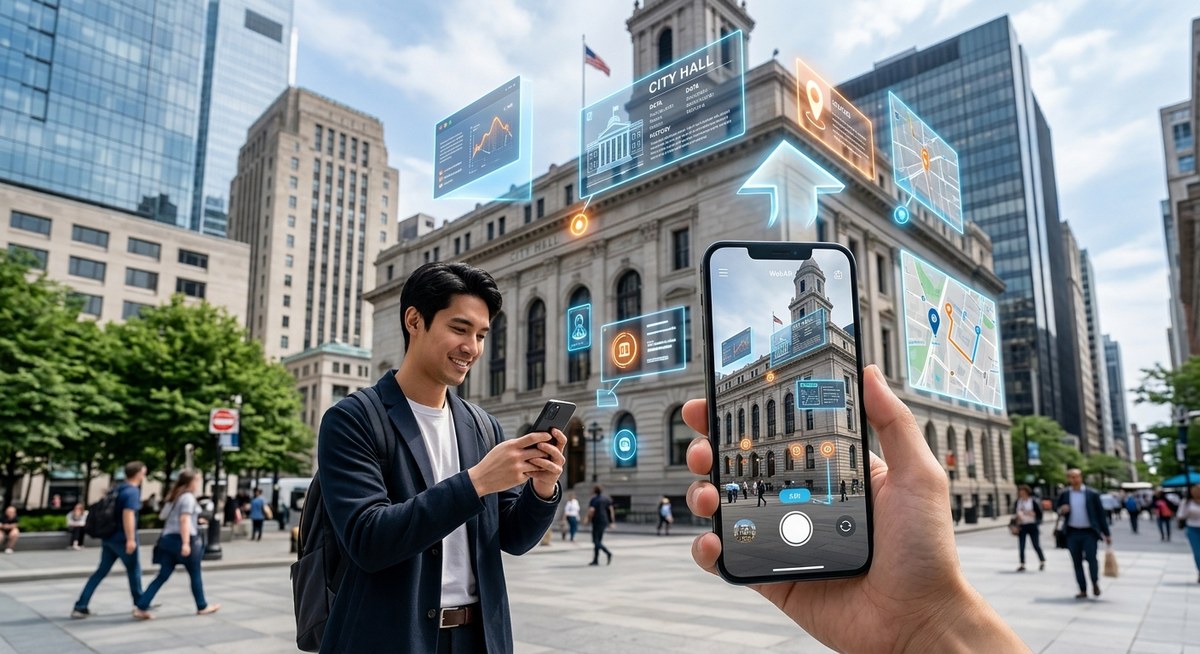
Location based augmented reality brings digital content into the real world at specific coordinates. Users point their phones at a landmark, and your AR experience appears right there on their screen.
This technology powers everything from tourism apps to retail campaigns. The best part? You can build it directly in the browser without asking users to download anything.
Location based WebAR combines GPS coordinates with web based augmented reality to place digital content at specific real world locations. Developers use the [Geolocation API](https://developer.mozilla.org/en-US/docs/Web/API/Geolocation_API) alongside WebXR or frameworks like AR.js and 8th Wall to create experiences that activate when users reach designated spots. Success requires understanding coordinate systems, handling permission requests, optimizing for mobile browsers, and testing accuracy across different devices and environments.
Understanding the Core Technologies Behind Location Based WebAR
Building location based WebAR requires three fundamental components working together.
First, you need the Geolocation API to access user coordinates. This browser feature returns latitude and longitude data that tells you where someone is standing.
Second, you need WebXR or a WebAR framework to render 3D content in the camera view. Popular choices include AR.js, 8th Wall, and A-Frame with AR components.
Third, you need logic that compares user location to your predefined AR anchor points. When someone gets close enough to a target coordinate, your experience activates.
The magic happens when these pieces connect. Your code constantly checks GPS position, calculates distance to AR markers, and triggers content when thresholds are met.
Most developers start with AR.js because it’s free and handles the heavy lifting. The library supports both marker based and location based AR without requiring extensive 3D knowledge.
Setting Up Your Development Environment
You’ll need a few tools before writing any code.
Start with a code editor like VS Code. Install the Live Server extension so you can test on mobile devices over your local network.
Create a basic HTML file with AR.js and A-Frame libraries linked in the head. These CDN links give you instant access to location based AR functions:
Enable HTTPS on your development server. Browsers block geolocation requests on unsecured connections, so you’ll need SSL certificates even for local testing.
Set up a test device running iOS Safari or Android Chrome. Desktop browsers can’t access device orientation sensors, making mobile testing essential from day one.
Install Xcode or Android Studio if you plan to test location spoofing. Simulators let you fake GPS coordinates without walking around your neighborhood.
The Step by Step Process for Building Your First Location Based Experience
Here’s how to build a simple location based AR scene that places a 3D object at specific coordinates.
- Create your HTML structure with an A-Frame scene configured for location based AR
- Add GPS coordinates for where you want AR content to appear
- Place 3D entities at those coordinates using the gps-entity-place component
- Configure the camera with gps-camera to track user position
- Test permission flows and handle cases where users deny location access
- Optimize 3D models to load fast on mobile connections
- Deploy to a hosting service with HTTPS enabled
Your basic HTML will look something like this:
<a-scene vr-mode-ui="enabled: false" arjs="sourceType: webcam; videoTexture: true; debugUIEnabled: false;">
  <a-camera gps-camera rotation-reader></a-camera>
  <a-entity gps-entity-place="latitude: 40.7128; longitude: -74.0060" scale="10 10 10">
    <a-box color="red"></a-box>
  </a-entity>
</a-scene>
This code creates a red box at the coordinates for New York City. When users visit that location and grant camera permissions, they’ll see the box floating in their camera view.
The gps-camera component continuously updates based on device GPS. The gps-entity-place component positions 3D objects relative to those coordinates.
Distance thresholds determine when content appears. AR.js typically activates entities within 100 meters of the target location, though you can adjust this range.
Handling Geolocation Permissions and Privacy Concerns
Users must explicitly grant location access before your experience works.
Browsers display a permission prompt when you first call the Geolocation API. Your code should request this early and handle both acceptance and rejection gracefully.
Create a fallback experience for users who deny permissions. Show a message explaining why location access matters and offer a manual coordinate entry option.
Never store precise GPS coordinates without user consent. Many privacy regulations require explicit opt-in for location data collection.
Consider implementing these privacy best practices:
- Request location only when needed, not on page load
- Explain what you’ll do with coordinate data
- Provide clear opt-out mechanisms
- Store only approximate locations when possible
- Delete location history after sessions end
Some users disable location services entirely at the OS level. Your app should detect this scenario and display helpful instructions for re-enabling permissions in device settings.
Choosing Between Marker Based and Markerless Location Tracking
Location based WebAR comes in two main flavors.
Marker based approaches use image recognition combined with GPS. Users scan a physical marker like a poster or sign, which triggers AR content at that specific spot. This method offers precise placement but requires printing and distributing markers.
Markerless location tracking relies purely on GPS coordinates. Content appears when users reach certain latitude and longitude values. This approach works anywhere but suffers from GPS accuracy limitations.
GPS typically has 5 to 10 meter accuracy on modern smartphones. That’s fine for large outdoor installations but problematic for precise indoor placement.
Hybrid approaches combine both methods. You might use GPS to get users within range, then switch to marker recognition for exact positioning.
| Tracking Method | Accuracy | Setup Complexity | Best Use Cases |
|---|---|---|---|
| GPS Only | 5-10 meters | Low | Outdoor tourism, city wide scavenger hunts |
| Marker + GPS | Centimeter level | Medium | Retail displays, museum exhibits |
| Plane Detection | Room scale | High | Indoor navigation, furniture placement |
Consider your use case carefully. A city walking tour can tolerate GPS drift. A retail product visualization needs marker precision.
Optimizing AR Content for Mobile Performance
Mobile browsers have strict performance limits.
Your 3D models must stay under 5MB for reasonable load times on 4G connections. Compress textures, reduce polygon counts, and use efficient file formats like GLB.
Test on older devices, not just flagship phones. An iPhone 14 handles complex scenes easily. An iPhone X from 2017 struggles with the same content.
Lazy load AR assets only when users get close to trigger points. Preloading everything tanks performance and wastes bandwidth for users who never reach certain locations.
Implement these optimization strategies:
- Use low poly models with baked lighting instead of real time shadows
- Compress textures to 1024×1024 or smaller
- Enable frustum culling to hide off screen objects
- Limit particle effects and animations
- Cache assets in service workers for repeat visits
Monitor frame rates during testing. Aim for 30 FPS minimum. Anything lower creates a nauseating experience that drives users away.
Battery drain matters too. AR experiences consume power fast through GPS, camera, and 3D rendering. Provide pause buttons and auto-timeout features.
Building Accurate Distance Calculations Between Coordinates
Calculating distance between two GPS points requires the Haversine formula.
This mathematical function accounts for Earth’s curvature when measuring great circle distance. Simple Pythagorean distance fails because latitude and longitude aren’t flat coordinates.
Here’s a JavaScript implementation:
function getDistance(lat1, lon1, lat2, lon2) {
  const R = 6371e3; // Earth radius in meters
  const φ1 = lat1 * Math.PI/180;
  const φ2 = lat2 * Math.PI/180;
  const Δφ = (lat2-lat1) * Math.PI/180;
  const Δλ = (lon2-lon1) * Math.PI/180;

  const a = Math.sin(Δφ/2) * Math.sin(Δφ/2) +
            Math.cos(φ1) * Math.cos(φ2) *
            Math.sin(Δλ/2) * Math.sin(Δλ/2);
  const c = 2 * Math.atan2(Math.sqrt(a), Math.sqrt(1-a));

  return R * c; // Distance in meters
}
Use this function to determine when users enter activation zones. Set thresholds appropriate to your content scale.
A 50 meter radius works well for large outdoor sculptures. A 5 meter radius suits small retail displays.
Remember that GPS accuracy varies by environment. Urban canyons with tall buildings create multipath interference. Indoor locations rarely get accurate readings at all.
Handling Compass Orientation and Device Sensors
Location tells you where users are. Orientation tells you where they’re looking.
The DeviceOrientationEvent API provides compass heading, pitch, and roll data. This information rotates your AR content to match real world directions.
iOS and Android handle orientation differently. iOS requires permission requests for motion sensors starting in iOS 13. Android grants access automatically in most browsers.
Request orientation permissions explicitly:
if (typeof DeviceOrientationEvent.requestPermission === 'function') {
  DeviceOrientationEvent.requestPermission()
    .then(permissionState => {
      if (permissionState === 'granted') {
        window.addEventListener('deviceorientation', handleOrientation);
      }
    });
}
Compass calibration affects accuracy significantly. Uncalibrated devices can be off by 30 degrees or more. Display calibration instructions when you detect poor heading accuracy.
Magnetic interference from metal structures throws off compass readings. Subway stations, steel buildings, and electrical equipment all cause problems.
Consider implementing visual compass indicators. Let users manually adjust orientation if automatic detection fails.
Creating Multi-Location AR Experiences and Tours
Single location AR is just the start. Tours with multiple waypoints create engaging narratives.
Design your experience as a series of connected stops. Each location reveals part of a story, puzzle, or educational content.
Store waypoint data in a JSON structure:
{
  "locations": [
    {
      "id": 1,
      "name": "City Hall",
      "lat": 40.7128,
      "lon": -74.0060,
      "content": "model1.glb",
      "radius": 30
    },
    {
      "id": 2,
      "name": "Park Statue",
      "lat": 40.7589,
      "lon": -73.9851,
      "content": "model2.glb",
      "radius": 25
    }
  ]
}
Track which locations users have visited. Save progress in localStorage so people can complete tours over multiple sessions.
Provide navigation hints between waypoints. Calculate bearing and distance to the next stop, then display directional arrows.
Think about accessibility. Not everyone can walk long distances. Offer virtual completion options or alternative routes.
Test the entire route yourself. Walk every path users will take and verify that GPS accuracy holds up at each waypoint.
Integrating WebAR with Backend Services and Analytics
Most production applications need server integration.
Store user generated content, track engagement metrics, and manage dynamic AR placements through backend APIs.
Use RESTful endpoints to fetch location data. This approach lets you update AR content without redeploying your entire application:
fetch('https://api.yoursite.com/ar-locations')
  .then(response => response.json())
  .then(locations => {
    locations.forEach(loc => {
      createAREntity(loc.latitude, loc.longitude, loc.model);
    });
  });
Track meaningful metrics like completion rates, time at each location, and interaction depth. These insights help you refine experiences over time.
Implement error logging for GPS failures, permission denials, and rendering issues. Remote debugging mobile AR is challenging without good telemetry.
Consider serverless functions for simple backends. AWS Lambda or Cloudflare Workers handle API requests without managing servers.
If you’re building commercial experiences, check out resources on tracking WebAR performance to measure what actually drives user engagement.
Testing Across Different Devices and Environments
Device fragmentation creates massive testing challenges.
GPS accuracy varies wildly between phone models. A Pixel 7 might nail coordinates within 3 meters while an older Samsung drifts by 15 meters.
Create a testing matrix covering:
- iOS Safari on iPhone (minimum iOS 14)
- Chrome on Android (minimum Android 9)
- Different GPS environments (open sky, urban, indoor)
- Various network conditions (5G, 4G, slow 3G)
- Battery levels (fresh charge vs low battery mode)
Use real devices, not just emulators. Simulators can’t replicate actual GPS behavior or camera performance.
Test at different times of day. GPS satellite geometry changes, affecting accuracy. Morning tests might succeed while evening tests fail.
Weather impacts GPS too. Heavy cloud cover and rain degrade signal quality. Your experience should handle these variations gracefully.
Build debug modes that display current coordinates, accuracy estimates, and distance to targets. This information helps troubleshoot location issues.
“The biggest mistake developers make is testing only in ideal conditions. Real users will try your AR experience in crowded streets, inside buildings, and during their commute. Test everywhere your audience might actually use it.”
Common Pitfalls and How to Avoid Them
New developers hit the same obstacles repeatedly.
First mistake: assuming GPS is always accurate. It’s not. Build tolerance into your trigger zones and provide manual override options.
Second mistake: ignoring permission flows. Users who deny location access see broken experiences. Always handle rejection gracefully.
Third mistake: loading huge 3D models. A 50MB GLTF file kills mobile performance. Optimize everything ruthlessly.
Fourth mistake: forgetting HTTPS requirements. Geolocation only works on secure connections. Set up SSL certificates from day one.
Fifth mistake: skipping real world testing. Desktop development can’t replicate mobile AR challenges. Test on actual devices in actual locations.
| Mistake | Impact | Solution |
|---|---|---|
| No permission handling | Broken experience for 20-30% of users | Implement fallback flows and clear explanations |
| Unoptimized models | Slow loading, poor frame rates | Compress to under 5MB, reduce polygons |
| GPS only positioning | 5-10 meter accuracy issues | Combine with markers or plane detection |
| Missing error states | Users stuck with no feedback | Add helpful messages for every failure mode |
Developers coming from traditional web development often underestimate mobile constraints. AR pushes devices hard. What works on desktop won’t necessarily work on phones.
Advanced Techniques for Precise Positioning
Basic GPS gets you started. Advanced techniques improve accuracy.
Differential GPS uses correction data from fixed reference stations. Services like NTRIP provide real time corrections that improve accuracy to under 1 meter.
Implementing DGPS requires additional APIs and paid services. Most WebAR projects don’t need this precision, but high value applications benefit significantly.
Sensor fusion combines GPS with accelerometer, gyroscope, and magnetometer data. This technique smooths position updates and reduces jitter.
Visual positioning systems use computer vision to recognize surroundings. Google’s Visual Positioning Service and similar technologies achieve centimeter accuracy by matching camera images to 3D maps.
Implementing VPS in WebAR currently requires third party services like 8th Wall or Niantic’s Lightship. These platforms handle the complex computer vision processing.
For projects requiring extreme precision, consider hybrid approaches. Use GPS for general proximity, then switch to marker detection or plane anchors for exact placement.
Deploying and Maintaining Location Based WebAR Projects
Deployment requires more than just uploading files.
Choose hosting with global CDN coverage. Users around the world need fast asset delivery. Cloudflare, AWS CloudFront, or Netlify all work well.
Enable compression for 3D models and textures. Brotli compression can reduce file sizes by 60% compared to gzip.
Implement service workers for offline functionality. Cache critical assets so the experience works even with spotty mobile connections.
Set up monitoring for uptime and performance. Tools like Sentry catch JavaScript errors. Real user monitoring shows actual load times across different networks.
Plan for content updates. Your AR locations will need refreshes as real world environments change. Build a content management system or use headless CMS solutions.
Budget for ongoing testing. OS updates break WebAR features regularly. iOS updates especially require retesting camera and sensor permissions.
Consider creating a simple admin panel for managing AR waypoints. Non-technical team members should be able to add locations without touching code.
If you need to get started without writing code, explore WebAR builders that don’t require coding knowledge for rapid prototyping.
Scaling Location Based AR to Hundreds of Locations
Small projects handle a dozen locations easily. Enterprise applications need different architecture.
Store location data in a spatial database like PostGIS. This technology indexes geographic coordinates efficiently and supports radius queries.
Implement spatial queries to fetch only nearby locations:
SELECT * FROM ar_locations
WHERE ST_DWithin(
  coordinates::geography,
  ST_MakePoint(-74.0060, 40.7128)::geography,
  1000
);
This query returns locations within 1000 meters of a point, ignoring distant content that users won’t see.
Use geohashing to cluster nearby locations. This technique groups coordinates into grid cells, making proximity searches faster.
Implement progressive loading. Fetch locations in batches as users move rather than loading everything upfront.
Cache location data aggressively. Most AR waypoints don’t change frequently. Store them in localStorage and refresh periodically.
Consider edge computing for global applications. Deploy location databases to regional servers so queries stay fast worldwide.
Making Location Based WebAR Accessible to All Users
Accessibility in AR goes beyond screen readers.
Not everyone can walk to physical locations. Provide virtual tour options that showcase AR content without requiring travel.
Add audio descriptions for visual AR elements. Screen reader users should understand what sighted users see.
Implement adjustable trigger radii. Users with mobility limitations might need larger activation zones.
Provide alternative input methods. Voice commands can replace touch gestures for users with motor impairments.
Consider these accessibility features:
- Text alternatives for all 3D content
- Adjustable contrast and brightness
- Reduced motion options
- Keyboard navigation support
- Clear error messages in plain language
Test with assistive technologies. VoiceOver on iOS and TalkBack on Android should work with your AR interface.
Offer different difficulty levels for location based games. Not everyone can walk miles between waypoints.
Remember that accessibility benefits everyone. Clear instructions help all users. Flexible activation zones account for GPS inaccuracy.
Real World Applications Driving Location Based WebAR Adoption
Understanding practical use cases helps you design better experiences.
Tourism applications place historical reconstructions at landmark sites. Visitors see buildings as they appeared centuries ago, overlaid on modern streets.
Retail brands create scavenger hunts that drive foot traffic. Users visit multiple store locations to collect virtual items and earn rewards.
Educational institutions build campus tours for prospective students. AR waypoints highlight facilities and share student testimonials at relevant spots.
Real estate companies showcase properties with location triggered visualizations. Buyers see proposed developments overlaid on empty lots.
Museums extend exhibits beyond their walls. Outdoor AR installations connect to indoor collections, creating city wide cultural experiences.
Event organizers use location AR for festivals and conferences. Attendees find sessions, discover sponsors, and play interactive games across venue spaces.
Each application type has unique requirements. Tourism needs historical accuracy. Retail demands reliable triggers in crowded spaces. Education requires accessibility features.
Study successful implementations before building your own. Brands like IKEA demonstrate how AR drives measurable business results.
Security Considerations for Location Based Applications
Location data creates privacy and security risks.
Never transmit precise GPS coordinates over unencrypted connections. Always use HTTPS and consider additional encryption for sensitive location data.
Implement rate limiting on location updates. Malicious users might try to spam your servers with fake coordinates.
Validate all location data server side. Don’t trust client submitted coordinates without verification.
Consider these security practices:
- Sanitize user generated content before displaying in AR
- Implement authentication for personalized experiences
- Use CORS policies to prevent unauthorized API access
- Monitor for suspicious location patterns
- Comply with GDPR and other privacy regulations
Don’t store location history longer than necessary. Delete old coordinate data according to your privacy policy.
Implement geofencing to prevent access from unexpected regions. If your experience targets a specific city, reject requests from other continents.
Be transparent about data collection. Tell users exactly what location information you store and why.
Future Proofing Your Location Based WebAR Projects
Web standards evolve constantly. Build for change.
Follow WebXR Device API development. This emerging standard will eventually replace proprietary AR frameworks with native browser support.
Use progressive enhancement. Build a basic experience that works everywhere, then layer advanced features for capable devices.
Avoid vendor lock in. Choose frameworks with active communities and open source licenses. Proprietary platforms might discontinue services.
Monitor browser compatibility tables. New iOS and Android versions sometimes break existing AR features.
Plan for 5G adoption. Faster networks enable richer content, but don’t abandon users on slower connections.
Watch for improvements in GPS technology. Next generation satellite systems promise better accuracy in urban environments.
Consider how AR glasses will change location based experiences. Apple Vision Pro and Meta Quest represent the future of spatial computing.
Build modular architectures. Separate location logic from rendering code so you can swap frameworks without rewriting everything.
Stay connected with the WebAR community. Follow AR.js updates, join developer forums, and test experimental browser features.
Bringing Location Based WebAR Into Your Workflow
You now have the foundation to build location based WebAR experiences.
Start small with a single location prototype. Test the permission flows, optimize one 3D model, and verify GPS accuracy in your target environment.
Expand gradually as you learn what works. Add more waypoints, implement analytics, and refine based on real user behavior.
The technology keeps improving. Browsers add new capabilities. Devices get more powerful. GPS accuracy increases with each satellite generation.
Your first project won’t be perfect. That’s fine. Every developer struggles with GPS drift, permission flows, and mobile performance.
Build something, test it in the real world, and iterate based on what you learn. Location based WebAR works best when you design for actual human behavior rather than ideal conditions.
The web makes AR accessible to everyone with a smartphone. No app stores, no downloads, no friction. That’s the real power of WebAR.
Start building today. Pick a location you can easily test, create a simple 3D object, and see your first AR experience come to life.