
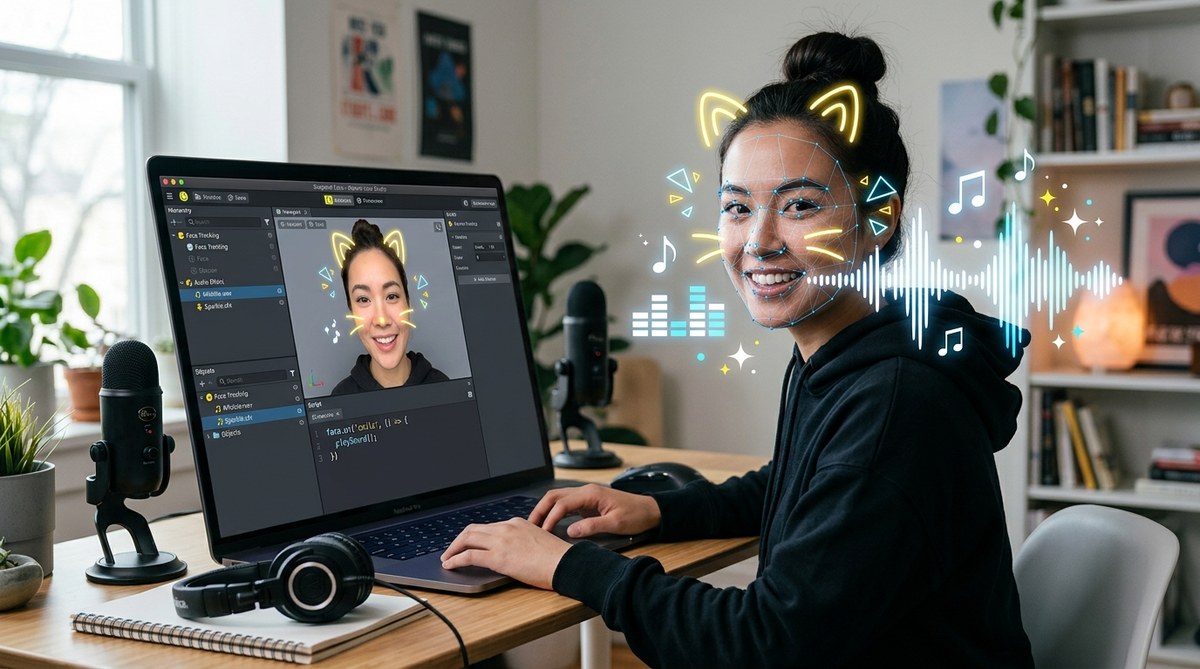
Making a Snapchat lens that reacts with sound when someone smiles, raises an eyebrow, or opens their mouth takes your AR filter from “cool to look at” to “I need to try this.” Users love filters that respond to their expression with a satisfying audio cue: a cartoon boing when they blink, a cash register cha-ching when they smile, or a glass shatter when they open wide. The good news? Connecting sound effects to face tracking in Lens Studio is simpler than you might think. You don’t need to be a master coder. A little patience and the right steps are all it takes.
Syncing sound effects with face tracking in Snapchat Lens Studio requires three core parts: importing an audio file, setting up an AudioComponent, and linking it to a face tracking trigger. You can use the built-in Behavior script or a custom JavaScript to fire sounds based on expressions like smile, eyebrow raise, or mouth open. Keep audio files short, compressed, and test in the preview player. This guide walks you through every step, including pro tips to avoid common pitfalls like audio lag and licensing issues.
Why Sound Sync Matters for Engagement
When a user hears a sound that matches their facial movement, the experience feels alive. Think about the most shared Snapchat lenses: they almost always include audio that responds to what you do. A wink that plays a record scratch. A frown that drops a sad trombone. These triggers make people laugh, record their reactions, and send the lens to friends.
From a technical standpoint, face tracking gives you coordinates and states for dozens of facial features. Lens Studio simplifies this with pre-built triggers: smile, eyebrow raise, eye blink, mouth open, cheek puff, and more. You can also use the face mesh to build custom expression blendshapes. Audio syncing is about connecting these triggers to the start (and sometimes stop) of a sound.
Understanding Face Tracking Triggers in Lens Studio
Before you drop in audio, you need to know what triggers are available. Lens Studio provides these in the Resources panel under “Face Gestures:”
- Smile (intensity from 0 to 1)
- Eyebrow Raise (lift from neutral)
- Mouth Open (distance between lips)
- Eye Blink (left, right, or both)
- Cheek Puff (inner mouth pressure)
- Jaw Side (left or right movement)
- Tongue Out (detection of tongue outside mouth)
Each trigger can be used as a “Start” condition in a Behavior script. For example, “When Smile > 0.5, play sound effect.” You can also use the “On Update” state to play a sound continuously while the expression is held, or just once when triggered.
Preparing Your Audio Assets
Audio files need to be in the right format and size for Lens Studio. Snapchat’s platform has strict limits. Here’s what works best:
- Format: .wav or .mp3. For short effects, .wav gives better quality at low sizes.
- Sample rate: 44.1 kHz is standard. Avoid 48 kHz if possible.
- Bit depth: 16-bit for .wav, high bitrate for .mp3 (192 kbps or higher).
- Length: Keep it under 5 seconds. Long audio files increase your lens’s download size and can cause approval delays.
- Looping: If the sound should repeat while the face is detected (like a buzzing sound when a smile is held), enable looping in the AudioComponent settings.
You can use free tools like Audacity or online converters to trim and export your sounds. For licensing, only use royalty-free or original audio. Snapchat reviews lenses for copyrighted material, so don’t use a snippet from a popular song unless you have rights.
Step-by-Step: How to Sync Sound Effects with Face Tracking
Let’s walk through building a simple lens: a cat that meows when you smile. You’ll need Lens Studio installed (version 4.x or higher as of 2026). If you haven’t created a basic lens yet, check out our guide on how to make your first Snapchat lens in under 30 minutes first.
-
Create a new project. Open Lens Studio and choose “New Project.” Pick “Face” as the template. Delete any default objects you don’t need.
-
Import your audio file. Go to the Resources panel in the bottom left. Click the “+” icon and select “Import Files.” Choose your .wav or .mp3 file. It will appear in the Resources list.
-
Add an AudioComponent. In the Scene panel, select your face mesh object (usually called “FaceMesh”). In the Inspector panel on the right, click “Add Component” and choose “AudioComponent.” A new component will appear.
-
Assign the audio. In the AudioComponent, drag your audio file from Resources to the “Audio Track” slot. Set “Spatial Audio” to Off for simple 2D sound. Leave “Play On Start” unchecked because we want the face trigger to start it.
-
Add a Behavior script. With the same object selected, click “Add Component” again and choose “Behavior Script.” In the script’s properties, you’ll see a dropdown for “Trigger.” Select “Face Gesture” from the list.
-
Set the face gesture. Under “Face Gesture,” choose “Smile” from the dropdown. Set the “Threshold” to 0.5. This means the sound will fire when the smile intensity reaches half.
-
Connect to AudioComponent. In the Behavior script, find the “Action” section. Click “Add Action” and choose “AudioComponent” > “Play.” A new field appears where you select the AudioComponent you added earlier. Drag the AudioComponent from the Scene panel into that field.
-
Test your lens. Click the “Preview” button in the top toolbar. Use your webcam or upload a test video. Smile in front of the camera. The meow sound should play every time you smile. If it doesn’t, check that the AudioComponent has the audio file assigned and that the threshold isn’t too high.
-
Tweak the behavior. If you only want the sound to play once per smile (not repeat every frame), change the “Behavior” in the script from “While Condition Is True” to “On Condition Become True.” This fires the sound only when the smile transitions from off to on.
For more complex triggers like eyebrow raise or mouth open, repeat the same steps but select the appropriate face gesture. You can also combine multiple behaviors to create layered audio feedback.
Common Mistakes to Avoid
Even experienced creators slip up on audio sync. Here is a table of the most frequent issues and how to avoid them.
| Mistake | Why It’s a Problem | Fix |
|---|---|---|
| Audio file too long or high bitrate | Increases lens size and may cause download timeouts or rejection. | Keep under 5 seconds, use 16-bit .wav at 44.1 kHz. |
| Ignoring audio licensing | Lens gets rejected or taken down for copyright infringement. | Only use original or royalty-free sounds (e.g., from Freesound, ZapSplat). |
| Setting “Play On Start” unchecked but no trigger assigned | Sound never plays because nothing tells it to start. | Double-check that a Behavior script is assigned with a face gesture action. |
| Using “While Condition Is True” for a short sound | Sound restarts every frame, creating a stutter or overlapping noise. | Change behavior to “On Condition Become True” for one-shot sounds. |
| Not testing with different faces | Trigger thresholds may work only for a specific person’s face shape. | Test with multiple people or use dynamic threshold adjustment in scripting. |
| Spatial Audio enabled for 2D effects | Sound appears to come from a specific direction, sounding unnatural. | Keep Spatial Audio disabled for standard face tracking sounds. |
Pro Tips for Tight Sync
Blockquote from an expert:
“The secret to perfect audio sync is the threshold value. Start at 0.5 but then dial it up or down depending on how expressive your test user is. I also recommend adding a small delay (100-200ms) using a Timer in JavaScript to let the face animation catch up with the audio. That tiny offset makes the sound feel organic rather than robotic.”
— Jamie R., AR filter designer with 19 published lenses exceeding 50 million views
To implement a delay with JavaScript, you can create a custom script instead of using the Behavior script. Here’s a simple example:
- Create a new Script component on your face mesh.
- Use the
getFaceExpressionAPI to read smile intensity. - When the threshold is crossed, start a Timer (e.g.,
global.timerSystem.addTimer). - When the timer fires, call
play()on the AudioComponent.
This approach gives you precise control and lets you fine-tune sync down to the millisecond.
Another tip: use a “stop” trigger for continuous sounds. If you have a looping drone that plays while the mouth is open, set a second Behavior script with action “AudioComponent > Stop” triggered when the mouth closes.
Testing and Previewing Your Synced Lens
Always preview before publishing. Lens Studio’s built-in preview works with your webcam. Record a few different expressions and pay attention to:
- Does the sound play exactly when the expression happens?
- Is there any lag? (Less than 150ms is acceptable for real-time AR.)
- Does the sound overlap with itself if triggered twice in one second?
- Is the volume level appropriate? (Users can adjust volume, but start moderate.)
You can also test on a mobile device using the “Snap Camera” or the Lens Studio companion app. This reveals performance differences between desktop and phone hardware.
If your lens uses multiple audio tracks, be mindful of memory. Each AudioComponent loads a decompressed audio buffer. Too many can cause crashes on older phones.
For more on creating engaging face tracking effects, read our article on 7 face tracking effects that will make your Snapchat lenses go viral.
Building on Your Foundation
Now that you can sync a single sound to a single expression, the possibilities grow. Combine multiple face gestures to create a soundboard: blink left for a drum hit, blink right for a hi-hat. Use the smile intensity as a variable to control sound pitch (via JavaScript and a custom AudioComponent property). That’s how the most viral music-maker lenses work.
Remember that Lens Studio constantly updates. In 2026, new face tracking features like tongue detection and head rotation have made audio sync even more capable. Stay curious and experiment.
Your first synced lens might be a simple cat meow. But it’s the first step toward building AR filters that people can’t stop using. Go ahead, open Lens Studio, pick a sound you love, and map it to your favorite facial expression. Then share it with a friend and watch their reaction. That feedback loop is what makes AR filter creation so rewarding.