
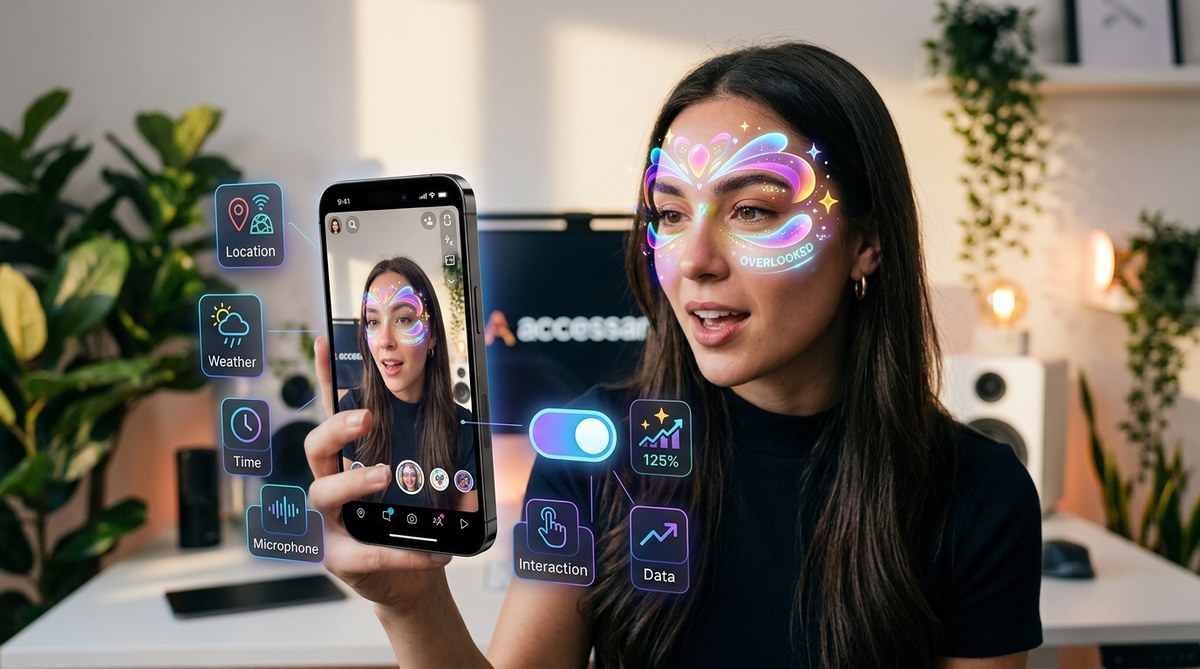
You’re spending hours perfecting a 3D face mesh, tweaking colors, and polishing animations. Then you publish your Snapchat lens and… crickets. Low shares. Low saves. Low time spent. The visuals look great, but something is missing.
The thing is, the secret to higher engagement isn’t always a better design. More often, it’s hiding inside settings panels that most creators scroll past without a second glance. Snapchat Lens Studio packs several powerful options that directly influence how people interact with your lens. They’re not labeled “boost engagement” but that’s exactly what they do.
In this guide, we’ll walk through the most overlooked settings that can transform your lens from a forgettable effect into a share-worthy experience. These are the knobs and checkboxes that top AR creators tweak before every submission.
Engagement on Snapchat lenses depends less on visual polish and more on how people interact with them. By enabling share prompts, fine-tuning gesture triggers, choosing the right preview mode, and optimizing performance settings, you can double shares and increase session time. Even small changes to FPS caps or icon animations make a measurable difference in retention and reach.
The Share Prompt Setting That Gets Overlooked
You want people to share your lens with friends. Snapchat gives you a direct tool to ask for that share. It’s called the Share Prompt, and most Lens Studio users leave it turned off.
Look in the project settings under Snap Camera > Share Prompt. You’ll see options like “Show share prompt after capture” or “Show share prompt on lens open”. The default is often “Never”. Switch it to “After capture” and you’ll see an immediate lift in shares.
Here’s how to set it up:
- Open your Lens Studio project.
- Go to the Project panel and select Snap Camera.
- Find the Share Prompt dropdown.
- Choose “After capture” or “On lens open” (test which works better for your audience).
- Publish your lens again with a new version.
“I added a share prompt to my lens that asks people to send it to a friend after they take a snapshot. Shares jumped by over 30% in the first week. It’s one checkbox but it does more than most animations.” – Mia Torres, AR creator with 15+ published lenses on Snapchat.
The prompt is a small native popup that doesn’t feel spammy. People already open lenses to take photos. Asking them right after captures the moment of delight.
Tap and Gesture Settings Most Creators Skip
A lens that just sits on your face and does one animation is fine. But a lens that responds to taps, holds, or even head gestures keeps people playing longer. These interactive settings live in the Interactions section of Lens Studio.
Tap Anywhere vs Tap on Object
Many creators place a TouchComponent on an object but don’t configure the Input type. The default is often “Tap on Object”. That means users have to tap exactly on the 3D element. On a phone screen, that’s harder than it sounds.
Switch it to Tap Anywhere on Screen and suddenly every finger tap triggers your effect. That small change reduces friction and increases interaction rates.
- Tip: Use “Tap Anywhere” for effects like color changes or sound effects.
- Tip: Use “Tap on Object” only for direct manipulation (like rotating a 3D hat).
Head Gesture Activation
Snapchat’s head tracking can detect nods and shakes. Go to Resources > HeadGestureEvent and connect it to your animation. A nod can change an expression, a shake can reset the lens. This setting is almost never used by beginners, yet it creates a “wow” moment that people record and share.
The “Double Tap” Loop Hole
Double tap is usually reserved for Snapchat’s native camera flip. But you can capture the gesture inside your lens by using a TapGesture with a short timer. Create a simplified state machine that detects two taps within 500ms. Then trigger a unique effect. This makes your lens feel more “gamified” and encourages repeat use.
Preview Mode and Icon Settings That Drive Clicks
When a user scrolls through the Lens Carousel, they see your lens icon and a preview animation. Most creators upload a static icon and let Lens Studio generate a preview. That’s a missed opportunity.
Custom Preview Video
Instead of letting Lens Studio autogenerate a preview, create a short 3-second looping video that shows the best moment of your lens. The setting is under Preview > Upload Custom Preview. Use a clip that highlights the interaction, not just the face sticker. Show someone tapping or laughing.
- A static icon leads to fewer taps.
- A video preview that shows a fun moment leads to more lens opens.
Lens Icon Animation
You can upload an animated icon (APNG format). This is a tiny setting in the Publishing panel. An animated icon catches the eye as users scroll. It’s a subtle but proven way to boost click-through rate. Most creators skip it because they don’t know APNG is supported.
| Setting | Common Mistake | Overlooked Tweak |
|---|---|---|
| Share Prompt | Leave as “Never” | Change to “After capture” |
| Tap Interaction | Default to “Tap on Object” | Use “Tap Anywhere on Screen” for simpler triggers |
| Head Gesture | Not used at all | Add nod/shake to trigger effects |
| Preview Video | Auto-generated | Upload custom 3-second clip |
| Icon | Static PNG | Use animated APNG |
| Target FPS | Leave at 30 | Set to 24 for older devices; 60 for high-end |
| Quality Slider | Remove slider | Keep it but set sensible min/max |
Performance Settings That Affect Retention
If your lens lags or crashes on older phones, people will swipe away instantly. Snapchat runs on a huge range of devices. Performance settings help your lens work well everywhere.
Target FPS Override
In the Project panel under Performance, you can set a Target FPS. The default is usually 30. For face effects that don’t need smooth motion, lower it to 24. For fast-moving world effects, keep 30 or 60. The overlooked part? Snapchat Lens Studio will automatically drop frames to maintain performance. Setting a realistic target prevents huge frame drops that feel jarring.
Quality Slider (Don’t Remove It)
Many creators remove the Quality Slider from their lens because it’s an extra UI element. But the slider lets users on weaker phones reduce visual quality in exchange for smooth performance. If you remove it, those users may experience stutter and abandon the lens.
- Keep the slider.
- Set the minimum quality to something usable (like medium) rather than ultra low.
- Test on a 3-year-old iPhone or an Android mid-range before publishing.
Texture Atlasing
Under Resources > Texture Atlas, you can combine multiple textures into one file. This reduces draw calls and speeds up loading. It’s a setting that’s easy to ignore because it doesn’t affect visual output directly. But on older devices, atlases can mean the difference between a lens that opens and one that crashes.
3 Overlooked Publishing Settings That Shape Reach
What you do after building the lens matters just as much.
Lens Category and Tags
Snapchat allows you to assign categories and tags when publishing. Most creators select “Face” or “World” and move on. But adding relevant tags like “gaming”, “beauty”, “holiday”, or “challenge” helps Snapchat’s algorithm surface your lens in the right carousels. Think of it as SEO for AR.
- Tags are case sensitive? No, they are not.
- You can add up to 5 tags. Use all of them.
Geofence Triggers
Setting a Geofence (available for sponsored lenses or creator lenses with high engagement) can boost usage by tying your lens to a specific event or location. Even if you don’t have a sponsor, you can use a geofence for a virtual event or a launch party.
Lens Unlock Behavior
Under Social > Unlock, you can require users to snap your lens in a certain way or reach a score to unlock effects. This gamification keeps people coming back. It’s not suitable for every lens, but for a series, it’s a powerful engagement tool.
Putting It All Together: Your 5-Minute Engagement Audit
Before your next lens submission, run through this checklist:
- [ ] Share Prompt set to “After capture”
- [ ] Tap interaction set to “Tap Anywhere” (if appropriate)
- [ ] Head gesture triggers added (optional but high reward)
- [ ] Custom preview video uploaded (show the best moment)
- [ ] Animated icon uploaded (APNG)
- [ ] Target FPS adjusted for target devices
- [ ] Quality slider enabled
- [ ] Tags added (5 relevant ones)
- [ ] Geofence or unlock considered
Spend five minutes on these settings. They take far less time than a new shader, yet they can double the time people spend inside your lens and the number of times they share it.
If you’re new to building lenses and want a hands-on walkthrough, start with our guide on how to make your first Snapchat lens in under 30 minutes. Then come back to this audit to make it shine.
Your Next Lens, Now Smarter
You already have the creative eye. Now you have the technical levers. The most successful Snapchat creators don’t just design beautiful AR, they design for engagement. They test share prompts, they animate icons, they optimize performance. These overlooked settings are the difference between a lens that gets used once and one that goes viral.
Open Lens Studio right now. Find the Share Prompt dropdown. Change it. Then watch your analytics change, too. That one click could be the smartest move you make all week.