
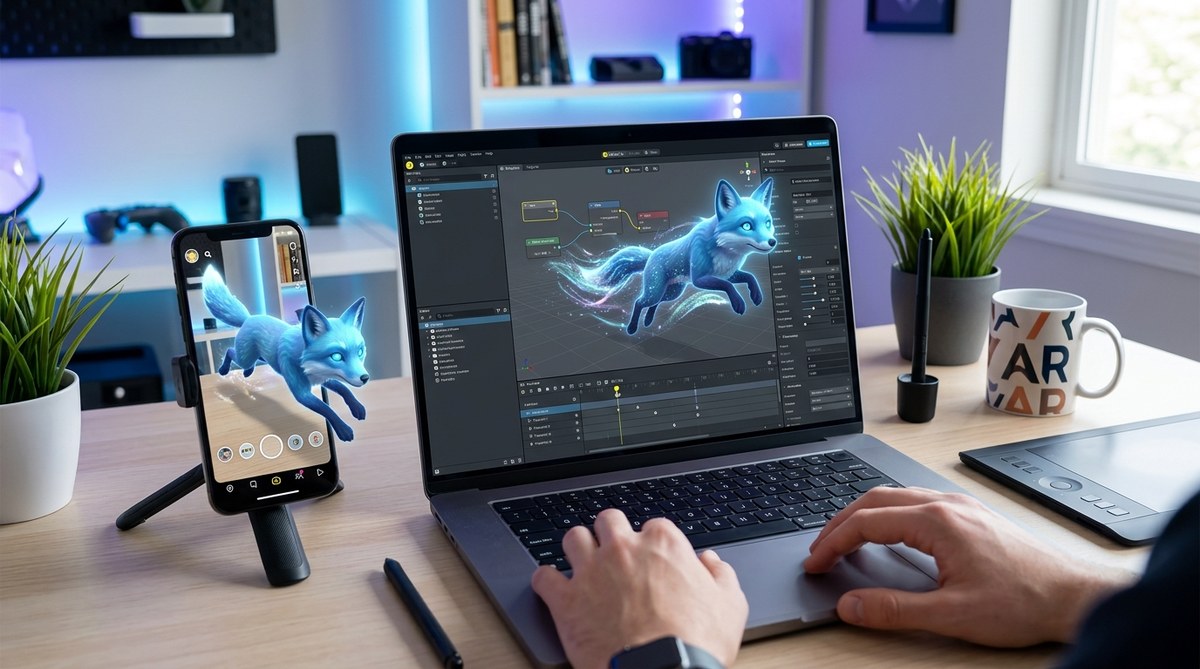
Bringing 3D objects to life inside your Snapchat lenses transforms static designs into engaging experiences that people actually want to share. Animation adds personality, movement, and interaction that makes your filters stand out in a crowded feed. Whether you want a spinning product, a bouncing character, or objects that respond to user taps, Lens Studio gives you multiple ways to animate objects without writing a single line of code.
Lens Studio offers three main animation methods: the Animation Mixer for imported animations, Tween Manager for simple movements, and Behavior scripts for interactive responses. Beginners should start with Tween Manager to learn rotation, scaling, and position changes before progressing to imported character animations. Understanding these tools helps you create professional, engaging filters that keep users interacting longer and sharing more often.
Understanding the three animation systems in Lens Studio
Lens Studio provides distinct animation tools that serve different purposes. Knowing which system to use saves hours of frustration.
The Animation Mixer handles animations that come baked into your 3D models. If you download a character from Sketchfab or create one in Blender with walk cycles already built in, the Animation Mixer plays those pre-made sequences. This system works best for complex character movements that would take forever to build manually.
The Tween Manager creates simple animations directly inside Lens Studio. You define start and end values for position, rotation, or scale, and the software smoothly transitions between them. This approach works perfectly for spinning logos, bouncing objects, or anything that follows predictable patterns.
Behavior scripts add interactivity without coding. These pre-built components make objects respond to taps, face movements, or time triggers. A behavior script might make a star appear when someone opens their mouth or make confetti fall when they tap the screen.
Most successful filters combine all three systems. A character might use Animation Mixer for walking, Tween Manager for floating up and down, and a behavior script to trigger special actions.
Setting up your first object animation with Tween Manager
The Tween Manager gives beginners the fastest path to visible results. Here’s how to animate objects in Lens Studio using this system.
- Add a 3D object to your scene through the Objects panel or import your own model.
- Select the object in the Scene Hierarchy panel.
- Click Add Component in the Inspector panel and choose Tween Manager.
- Click the plus icon to add a new tween animation.
- Choose your animation type from the dropdown menu (Move, Rotate, Scale).
- Set your start and end values for the animation.
- Adjust the duration to control how long the animation takes.
- Select a loop type to make it repeat, play once, or bounce back and forth.
The Move tween shifts objects from one position to another. You might animate a product sliding in from off screen or make floating hearts drift upward. Position values use X, Y, and Z coordinates where X moves left and right, Y moves up and down, and Z moves forward and backward.
Rotate tweens spin objects around any axis. A single axis rotation creates clean spins like a rotating coin. Multi-axis rotation produces tumbling effects that work well for playful objects.
Scale tweens change object size smoothly. Pulsing animations that grow and shrink create attention-grabbing effects. Starting at zero scale and growing to full size makes objects pop into existence naturally.
Start with a single simple animation before layering multiple tweens. A spinning cube teaches you timing and easing curves better than a complex multi-part sequence ever will.
Working with imported animations and the Animation Mixer
When you need character animations or complex movements, the Animation Mixer becomes essential. This system plays animations that artists create in 3D software like Blender, Maya, or Cinema 4D.
Your 3D model file needs animations embedded before importing. FBX and glTF formats both support embedded animations. When you import a file with animations, Lens Studio automatically detects them.
To set up the Animation Mixer:
- Import your animated 3D model into the Resources panel.
- Drag the model into your scene from the Resources panel.
- Select the imported object in the Scene Hierarchy.
- Add the Animation Mixer component from the Inspector panel.
- Your available animations appear in the Layers section.
- Click the play icon next to any animation to preview it.
The Animation Mixer lets you blend multiple animations together. A character might have separate animations for idle, walking, and waving. You can smoothly transition between these states or play them simultaneously at different blend weights.
Loop settings control whether animations play once or repeat continuously. Most idle animations need looping enabled. Action animations like jumping usually play once and then return to idle state.
Speed multipliers let you slow down or speed up imported animations without re-exporting from your 3D software. A value of 2.0 doubles the speed while 0.5 runs at half speed.
If you’re just getting started with 3D objects, adding 3d objects to snapchat lenses for beginners covers the foundational steps before animation.
Creating interactive animations with behavior scripts
Behavior scripts make your animations respond to user actions. These pre-built components require no coding knowledge but create professional interactive effects.
The Tap to Toggle behavior makes objects appear or disappear when users tap the screen. This works perfectly for revealing hidden elements or switching between different states. Add this component to any object, and it automatically becomes interactive.
Face Movement behaviors trigger animations based on facial expressions. Opening your mouth, raising eyebrows, or turning your head can all trigger different animations. A flower might bloom when someone smiles or fireworks might explode when they open their mouth wide.
The Delay behavior waits a specified time before triggering another action. You might delay an animation by two seconds to create suspense or stagger multiple objects so they don’t all move simultaneously.
Random behaviors add unpredictability. Objects can appear in random positions, rotate random amounts, or trigger at random intervals. This variation makes filters feel more dynamic and less robotic.
Chaining behaviors together creates complex sequences. A tap might trigger a delay, which triggers a tween animation, which triggers a sound effect. Each behavior component has input and output connections that let you build these chains visually.
| Behavior Type | Best Use Case | Difficulty Level |
|---|---|---|
| Tap to Toggle | Show/hide objects | Beginner |
| Face Movement | Expression-triggered effects | Beginner |
| Delay | Timed sequences | Beginner |
| Random | Varied positions or timing | Intermediate |
| Chain | Multi-step interactions | Intermediate |
Timing and easing curves for natural movement
Animation timing determines whether your objects feel realistic or robotic. Easing curves control how animations accelerate and decelerate.
Linear easing moves at constant speed from start to finish. This creates mechanical movement that works for rotating gears or scrolling text but feels unnatural for most organic objects.
Ease In starts slowly and accelerates toward the end. This mimics how objects fall under gravity or how movements build momentum. Use this for objects entering the scene or dropping down.
Ease Out starts fast and decelerates toward the end. This creates the feeling of friction or resistance. Objects sliding to a stop or gently settling into position benefit from ease out curves.
Ease In Out combines both effects. Movement starts slowly, accelerates in the middle, and slows down at the end. This creates the most natural-looking motion for most animations.
Bounce easing makes objects overshoot their target and bounce back. A ball dropping to the ground or a UI element popping into view both work well with bounce curves.
Elastic easing creates springy, exaggerated movement. This works for playful, energetic filters but feels out of place in professional or subtle designs.
The duration you choose matters as much as the easing curve. Most attention-grabbing animations complete in 0.5 to 1.5 seconds. Slower animations risk boring users before completion. Faster animations might finish before users notice them.
Testing on actual devices reveals timing issues that desktop previews miss. An animation that feels perfect on your computer might feel too slow or too fast on a phone screen.
Common animation mistakes and how to avoid them
Even experienced creators make these animation errors that hurt filter performance and user experience.
Animating too many objects simultaneously overwhelms both the viewer and the device processor. Phones struggle to render dozens of animated objects smoothly. Limit yourself to three to five animated elements in any single scene. If you need more movement, stagger the timing so objects animate in sequence rather than all at once.
Forgetting to set proper loop types creates jarring resets. An object that suddenly jumps back to its starting position breaks immersion. Use ping pong loops for back-and-forth motion or seamless loops for continuous rotation.
Ignoring mobile performance constraints causes filters to lag or crash. Complex animations with high polygon models drain battery life and make phones heat up. Test every filter on older phone models, not just the latest flagship devices.
Using the wrong coordinate space confuses new creators. Local space moves objects relative to their own orientation. World space moves objects relative to the scene’s fixed coordinates. A spinning object needs rotation in local space, but movement across the screen uses world space.
Skipping animation previews before publishing leads to embarrassing mistakes. An animation might work perfectly in isolation but conflict with face tracking or other filter elements. Preview your complete lens multiple times from different angles.
| Mistake | Consequence | Solution |
|---|---|---|
| Too many animated objects | Performance issues, lag | Limit to 3-5 animated elements |
| Wrong loop settings | Jarring visual resets | Match loop type to animation purpose |
| Heavy animations | Battery drain, crashes | Test on older devices, optimize models |
| Mixed coordinate spaces | Unpredictable movement | Understand local vs world space |
| No full previews | Publishing broken filters | Test complete lens before submission |
Combining animations with face tracking effects
Face tracking adds another dimension to object animation. Objects can follow facial features, respond to expressions, or maintain fixed positions relative to the camera.
The Face Mesh provides attachment points for animated objects. You can parent objects to specific facial landmarks like the forehead, nose tip, or chin. When someone moves their head, the animated object moves with them while continuing its animation.
Face Inset places animated objects in front of or behind the face mesh. A pair of animated sunglasses might sit on the bridge of the nose while the lenses remain transparent to show eyes underneath. The sunglasses can spin, change color, or respond to taps while maintaining their face-locked position.
Combining face expressions with object animations creates engaging interactions. Someone raising their eyebrows might make stars shoot out from their head. Opening their mouth could make animated food items fly toward them.
Distance from camera affects animation visibility. Objects that work perfectly at arm’s length might become too small or too large when users move closer or farther away. Test your animated objects at various distances to ensure they remain visible and properly scaled.
For more advanced face-based interactions, 7 face tracking effects that will make your snapchat lenses go viral explores creative techniques that keep users engaged.
Optimizing animations for better performance
Smooth performance separates professional filters from amateur attempts. These optimization techniques keep your animations running at 60 frames per second.
Reduce polygon counts on animated 3D models. A model with 50,000 polygons might look beautiful on desktop but destroys phone performance. Aim for under 10,000 polygons per animated object. Use normal maps and texture details to create the illusion of complexity without the processing cost.
Limit texture resolution to what users can actually see. A 4K texture on a small animated object wastes memory. Most animated objects work perfectly with 512×512 or 1024×1024 textures. Save the higher resolutions for static background elements or hero objects that fill the screen.
Disable animations when objects leave the camera view. An object spinning behind the user’s head wastes processing power on movement nobody sees. Use visibility triggers to pause animations for off-screen objects.
Compress textures appropriately for your content. Photographs need different compression than illustrated graphics. Lens Studio’s automatic compression works well for most cases, but manual adjustment sometimes produces better results with smaller file sizes.
Reuse animations across multiple objects rather than creating unique animations for each element. Ten stars using the same rotation animation consume far less memory than ten stars with individual animations.
The performance panel inside Lens Studio shows real-time frame rates and memory usage. Keep this panel open while building animations to catch performance problems before they become serious issues.
Exporting animated objects from 3D software
Creating custom animations outside Lens Studio gives you complete creative control. Here’s how to prepare animated objects in external 3D software.
Blender offers the most accessible path for beginners. The software is free and includes robust animation tools. Create your object, add an armature for character animation or keyframe transforms for simple movements, then export as FBX or glTF.
Your animation timeline in 3D software determines what Lens Studio imports. A 120-frame animation at 30 frames per second creates a four-second loop. Plan your timing in the 3D software before exporting.
Bake animations before exporting to ensure they transfer correctly. Baking converts procedural animations, constraints, and modifiers into simple keyframes that any software can read. Most 3D programs include a bake animation option in their export settings.
Name your animations clearly. Instead of “Animation.001” use descriptive names like “Idle_Loop” or “Jump_Once.” These names appear in Lens Studio’s Animation Mixer and help you identify which animation does what.
Test exported files immediately. Import your animated object into Lens Studio right after exporting to verify everything transferred correctly. Discovering animation problems after building an entire filter around the object creates frustrating rework.
Scale matters during export. An object that’s properly sized in Blender might import as tiny or enormous in Lens Studio. Apply scale transforms before exporting and set your export units to match Lens Studio’s expectations.
If you want to explore other AR platforms beyond Snapchat, meta spark studio vs lens studio which ar platform should you choose compares the major options.
Advanced animation techniques for experienced creators
Once you master basic animation, these advanced techniques create truly unique filters.
Animation layering combines multiple animation systems on a single object. A character might use Animation Mixer for walking, Tween Manager for a floating effect, and a behavior script for tap responses. Each system controls different properties without interfering with the others.
Blend shapes morph object geometry smoothly. A sphere might gradually transform into a cube or a face might shift between different expressions. These morphs create organic transformations that simple position or rotation tweens cannot achieve.
Particle systems generate dozens of small animated objects from a single emitter. Confetti, sparkles, smoke, and magic effects all use particle systems. Each particle follows physics rules or custom animations while the emitter controls spawn rate and direction.
Physics simulations make objects respond to gravity, collisions, and forces. A bouncing ball that actually bounces off surfaces or cloth that drapes naturally over face features requires physics simulation. Lens Studio includes basic physics components that handle common scenarios.
Procedural animations use mathematical functions instead of keyframes. A sine wave might control up and down motion while a cosine wave handles side to side movement. These mathematical animations create perfect loops and organic patterns.
Custom shaders animate object materials and textures. Colors might pulse, patterns might swirl, or transparency might fade in and out. Shader animations affect appearance rather than position but create equally compelling visual effects.
Troubleshooting animation problems
When animations don’t work as expected, these diagnostic steps identify the problem.
Animation not playing at all usually means the component isn’t properly enabled. Check the Inspector panel to verify the Animation Mixer or Tween Manager has its checkbox enabled. Disabled components appear grayed out in the component list.
Objects animating in wrong directions indicate coordinate space confusion. Switch between local and world space in the transform settings. Local space rotates around the object’s center while world space uses the scene’s fixed axes.
Choppy or stuttering animation points to performance issues. Open the performance panel to check frame rates. If frames drop below 30 per second, reduce polygon counts, lower texture resolutions, or disable some animated elements.
Animations resetting unexpectedly happen when loop settings conflict with behavior scripts. A tween set to play once might restart when a behavior script re-triggers it. Check all behavior connections to find unintended triggers.
Imported animations not appearing means the Animation Mixer isn’t detecting embedded animations. Re-export your 3D model with animations explicitly baked and embedded. Some export formats require specific settings to include animation data.
Objects disappearing during animation often results from scale or position values pushing them outside the camera view. Add temporary guide objects to visualize the animation path and verify objects stay within frame.
Starting from scratch sometimes solves mysterious problems faster than debugging. If you’re new to the platform, how to make your first snapchat lens in under 30 minutes walks through building a complete working lens from zero.
Making animations feel alive
The difference between mechanical movement and animations that feel alive comes down to small details that most beginners overlook.
Secondary motion adds realism. When a character’s head turns, their hair should move slightly after. When an object stops moving, it might wobble briefly before settling. These subtle secondary movements make animations feel subject to physics rather than computer-controlled.
Anticipation prepares viewers for major movements. A character crouches slightly before jumping. An object pulls back before launching forward. This anticipation makes actions feel intentional and powerful rather than sudden and jarring.
Follow-through continues movement after the main action completes. A waving arm doesn’t stop instantly. The hand continues moving slightly after the arm stops. Clothing, hair, and flexible objects all exhibit follow-through in real life.
Squash and stretch adds weight and flexibility. A bouncing ball squashes when it hits the ground and stretches while falling. Even rigid objects benefit from subtle squash and stretch that makes them feel less like floating computer graphics.
Timing variation prevents monotony. If you have five objects doing the same animation, offset their start times by a few frames. This staggered timing creates visual interest and prevents the repetitive feeling of synchronized movement.
Arc-based motion looks more natural than straight-line movement. Real objects rarely move in perfectly straight lines. Arms swing in arcs. Thrown objects follow parabolic curves. Building gentle arcs into your animation paths creates more believable movement.
Bringing your animated objects to life
Animation transforms static 3D objects into experiences that people want to interact with and share. The tools inside Lens Studio give you everything needed to create professional animations without coding knowledge.
Start with simple Tween Manager animations to understand timing and easing. Move to imported animations when you need complex character movements. Add behavior scripts to make everything interactive and responsive.
Test constantly on real devices. What looks smooth on your computer might stutter on phones. What seems perfectly timed at your desk might feel too slow or too fast when someone actually uses your filter.
Your first animations won’t be perfect. That’s completely normal. Each filter you create teaches you something new about timing, easing, and user interaction. Build, test, iterate, and improve. The difference between beginners and experienced creators isn’t talent but the willingness to keep learning from each project.