
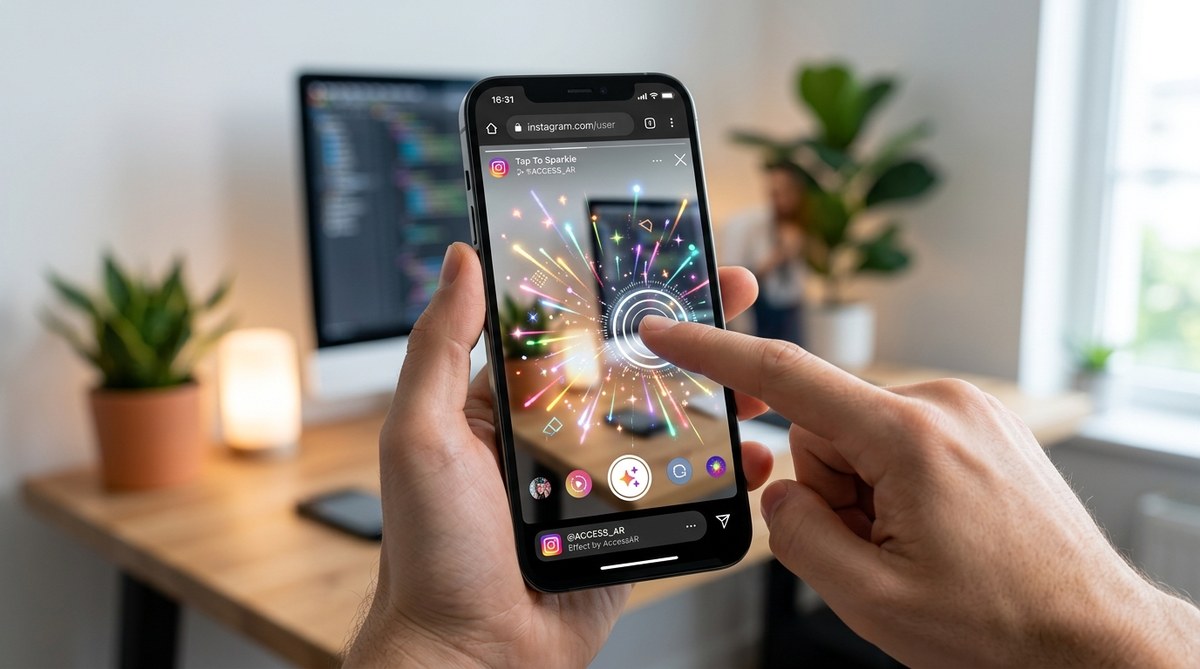
Creating engaging Instagram filters is a fantastic way to connect with your audience. One of the most powerful tools in your AR toolkit is adding tap gestures. These interactions make your filters more dynamic and can significantly boost user engagement. Whether you’re a beginner or an experienced creator, understanding how to implement tap gestures can open new creative doors. This guide walks you through the process, offering step-by-step instructions and expert tips to help you craft interactive, fun, and memorable effects.
Adding tap gestures to Instagram filters transforms static effects into [interactive experiences](https://www.who.int/news-room/fact-sheets/detail/physical-activity). By following simple steps and avoiding common mistakes, creators can boost engagement and showcase their creativity effectively.
Understanding the Importance of Tap Gestures in Instagram Filters
Tap gestures allow users to interact directly with your filters by simply tapping on the screen. This interaction can trigger animations, change effects, or reveal hidden features. When done right, it turns a passive viewing experience into an active one. This increased interactivity leads to higher engagement rates, encouraging users to share your effects more often.
Adding tap gestures is especially valuable for campaigns, brand collaborations, or viral trends. It makes your filter stand out among thousands of effects. For creators, incorporating gestures offers a way to tell stories more compellingly and to showcase technical skills in AR development.
How to Add Tap Gestures to Instagram Filters: Step-by-Step
Incorporating tap gestures involves a few core steps, which can vary slightly depending on the platform you’re using. Here, we focus on Spark AR Studio, the most popular tool for creating Instagram effects. Follow these steps:
1. Set Up Your Project and Import Assets
Start with a clean project or open an existing one. Import any visual or animated assets you plan to use. Keep your files organized to streamline the process.
2. Create an Interaction Trigger
To detect a tap, you need to add an interaction trigger. In Spark AR Studio:
- Select the “Patch Editor” panel.
- Click the “+” button to add a new patch.
- Search for and select “Screen Tap” patch. This patch detects tap gestures on the screen.
3. Connect the Tap Detection to Your Effects
Once the tap patch is added:
- Connect the “Screen Tap” output to the control input of the effect you want to trigger. For example, you might connect it to a “Switch” patch to toggle between effects, or to an “Animation Player” to start or stop animations.
- Use “Switch” patches if you want multiple tap interactions, such as toggling effects on and off.
4. Fine-Tune Your Interaction
Experiment with different responses:
- Change colors
- Play animations
- Trigger sound effects
- Reveal hidden objects
Preview your filter frequently to see how the tap interactions feel. Adjust the timing and response to match your creative vision.
5. Test and Publish
Use Instagram’s test environment or Spark AR Player to ensure your tap gestures work smoothly across devices. Once satisfied, submit your filter for review. Adding clear instructions for users to tap can increase interaction rates.
Best Practices for Adding Tap Gestures
- Keep interactions simple. Overloading your filter with multiple gestures can confuse users.
- Use visual cues like icons or animations to indicate taps.
- Test on different devices for consistency.
- Use clear instructions within the filter or in your campaign copy to guide users.
“Remember, the goal of adding tap gestures is to create a seamless experience. Always prioritize ease of use and clarity to make your filters more engaging.”
Common Mistakes to Avoid
| Mistake | Explanation | Solution |
|---|---|---|
| Overcomplicating interactions | Too many gestures can overwhelm users | Focus on one or two intuitive gestures |
| Not testing on multiple devices | Variations in performance and responsiveness | Test on both iOS and Android devices |
| Ignoring user instructions | Users may not know how to interact | Add visual cues or overlay instructions |
| Forgetting to optimize assets | Heavy assets slow down performance | Use optimized files for faster load times |
Quick Tips for Enhancing Tap Gestures
- Use visual feedback such as ripples or animations to confirm a tap.
- Combine gestures with sounds for a richer experience.
- Experiment with multi-tap gestures for more complex interactions.
- Keep the interaction natural and fun to encourage sharing.
Advanced Techniques for Interactive Tap Effects
Once you’re comfortable with basic tap gestures, you can explore more complex interactions like:
- Combining tap gestures with face tracking for personalized effects.
- Creating multi-step interactions where each tap reveals a new feature.
- Using scripting to introduce conditional logic.
Example Technique: Toggle Effects with Tap
| Technique | Mistake | Tip |
|---|---|---|
| Using a switch patch to toggle effects | Forgetting to reset state | Ensure you reset toggles when needed |
| Combining tap with face tracking | Not aligning effects properly | Test and adjust positions for different face angles |
Final Words: Bringing Your Filters to Life
Adding tap gestures to Instagram filters is a straightforward way to boost interactivity and user engagement. Start with simple interactions, test thoroughly, and gradually explore more complex effects. Remember, clear instructions and responsive design are key to a successful filter.
By practicing these steps and avoiding common pitfalls, you can create effects that not only look great but also invite users to participate actively. Your creativity combined with interactive gestures can elevate your AR filters from ordinary to memorable. Dive in, experiment, and watch your audience engage like never before.