
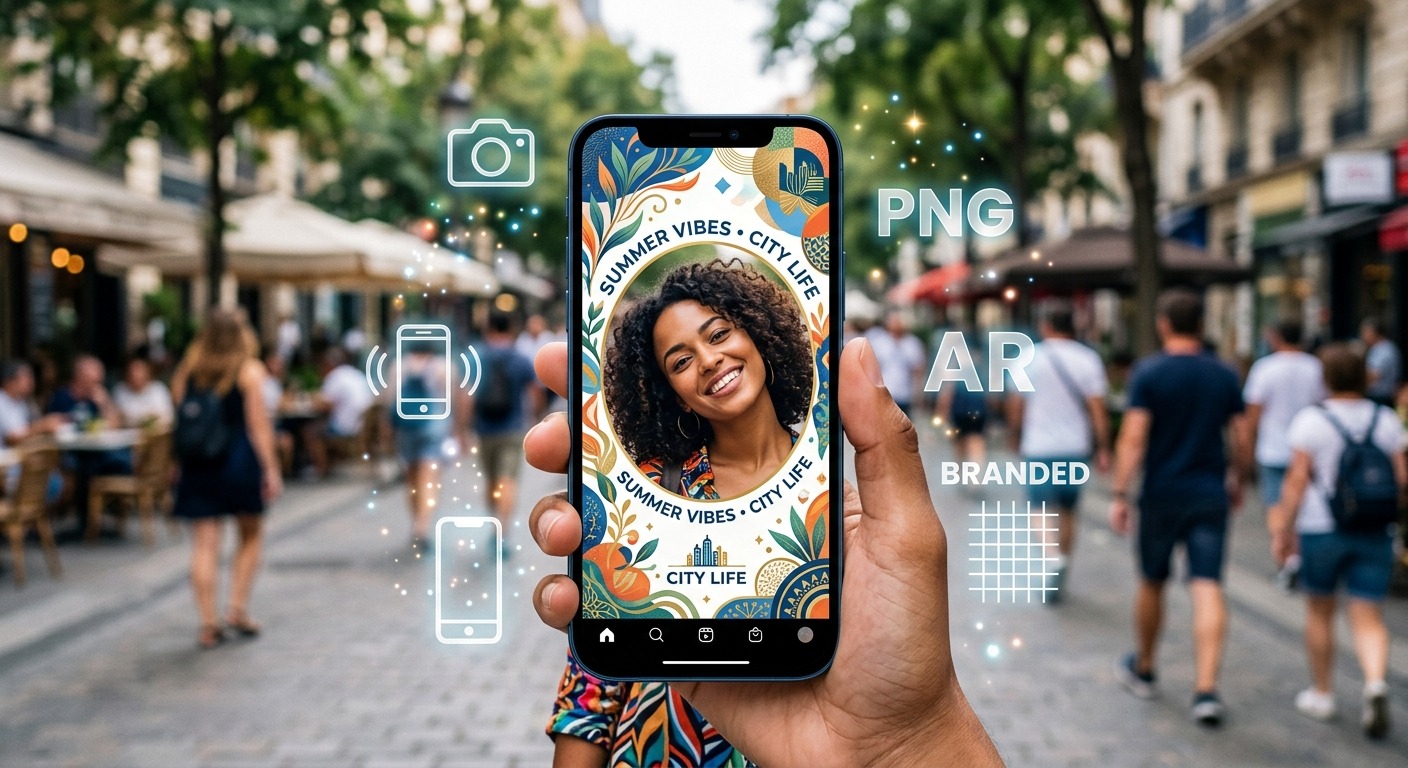
A photo frame can look perfect on your laptop and still cover someone’s smile on their phone. That small mistake can turn a promising branded effect into something people close immediately. A useful AR frame gives people room to look good, adds a recognizable brand touch, and stays readable while the camera moves. You can build that experience in Lens Studio without starting with complex scripts.
This walkthrough takes you from a rough layout to a frame you can test and submit for publication. You will prepare transparent PNG artwork, place it over the camera view, check how it behaves on different screens, and make the final effect easy to understand.
Your Frame-Building Checklist
- Plan a clear opening for faces before drawing the border.
- Export transparent PNGs with clean edges and readable artwork.
- Use screen-based placement for a frame around the camera view.
- Test contrast, cropping, and face clearance on a phone.
- Prepare an accurate preview and complete the publishing review.
Plan a Frame People Will Want to Use
Start with one purpose. Your frame might celebrate a store opening, promote a seasonal event, or give customers a branded selfie moment. Write that purpose in a sentence. It will help you decide what belongs in the artwork and what can stay in the campaign caption.
Choose a small set of brand elements. A logo, two brand colors, and a short message are usually enough. A camera effect has limited space, especially once the person’s face and the app interface enter the picture. Long slogans and several promotional messages make that space feel crowded.
Sketch the Face Opening Before the Border
Draw a portrait rectangle and mark a generous clear area in the center. Place a sample selfie behind your sketch. Keep eyes, cheeks, and mouths free from decoration. Leave extra room for people who wear glasses, have large hairstyles, or pose with another person.
Move your logo toward an edge, but avoid the extreme corners until you have checked the phone experience. Interface controls and differences in screen shape can affect what people see. Treat the first sketch as a starting point, then adjust it after testing.
For a first project, a screen-based frame is a manageable choice. It stays around the camera view while people move inside it. A graphic attached to someone’s head requires face tracking and serves a different purpose.
Prepare Transparent PNG Artwork With Clean Edges
Create your artwork in an editor that supports transparency. The empty center must contain transparent pixels, not a white rectangle. A checkerboard background often represents transparency in an editor, but check the exported file itself before importing it.
Keep an editable source file with separate layers for your logo, border, text, and decorative details. Exporting everything as one PNG makes placement straightforward. Exporting a few separate PNGs gives you more control over spacing inside Lens Studio.
For extra decorative elements, browse clipart PNG artwork that suits your campaign. Check usage rights for every asset, including permission for commercial use and any attribution requirements. A downloadable image does not automatically come with permission to use it in a branded effect. Keep those decorations near the border and clear of faces.
Choose an Asset Structure That Fits Your Layout
| Asset Approach | Main Benefit | Main Tradeoff |
|---|---|---|
| One complete frame PNG | Simple import and consistent artwork placement | Individual elements cannot be repositioned separately |
| Separate border, logo, and decoration PNGs | More control when adjusting screen spacing | More objects to organize and test |
| PNG border with separate text | Campaign wording can be edited independently | Text needs its own font, sizing, and layout checks |
Export at a resolution that keeps the artwork sharp at its intended display size. Bigger files are not automatically better. Large transparent margins and oversized textures can add unnecessary weight. Use consistent canvas dimensions if several assets need to line up.
Inspect each PNG against both dark and light backgrounds. Pale outlines can disappear against bright scenes. Dark edges can disappear against hair or clothing. If you see a white fringe around curved shapes, revisit the export settings or clean the edge pixels in your editor.
Build the Frame in Lens Studio
Open Lens Studio and create a project with a camera preview. A blank project works, as does a suitable screen-overlay starting point if your installed version offers one. Interface names can vary between versions. The core task is to display an image in screen space, where its position follows the screen instead of a location in the room.
- Save your project. Give it a clear campaign name and keep the source artwork nearby.
- Import your PNG assets. Add them to the project’s asset area and confirm that the transparent regions appear correctly.
- Add a screen image object. Use the screen-space image component or equivalent object available in your version.
- Assign the PNG texture. Select your imported artwork as the image’s texture and confirm that its transparency is preserved.
- Adjust the screen layout. Set the image’s position, size, and anchors while watching the camera preview.
- Check the image proportions. Avoid stretching the logo or border while fitting the artwork to the screen.
- Arrange separate elements. Position the logo, decorations, and text, then check their drawing order.
- Save a working version. Keep this simple frame as a stable starting point before adding optional behavior.
Anchors describe how a screen element relates to the edges or center of its parent area. For example, a small logo near the bottom can use a bottom-centered layout. A full border needs a layout that accounts for the whole screen. Watch how each choice behaves when the preview changes shape.
Pay attention to the difference between fitting, filling, and stretching. Fitting can leave empty space. Filling can crop the artwork. Stretching can distort it. If a complete border cannot adapt cleanly, separate its top, bottom, and corner elements so you can position them independently.
Make the Brand Readable Over Real Camera Scenes
The camera background is unpredictable. Someone might stand in front of a white wall, a dark doorway, or a busy shop display. Your text needs to survive all three. Place short wording on a solid or lightly translucent panel when the background makes it difficult to read.
Use a simple font with clear letter shapes. Check the smallest text at normal phone size. If you have to zoom in to read it, increase the size or shorten the message. A phrase with three useful words usually works better than a sentence squeezed into the bottom border.
Do not rely on color alone to communicate meaning. If the effect asks people to take an action, include readable wording. Keep essential information in the campaign post as well, where people have more time and space to read it.
A static frame is a sensible first release. Movement should have a purpose. If you add animation, keep it gentle and make sure it does not repeatedly cross someone’s face or interrupt reading.
Test the Frame With People, Movement, and Different Screens
Use the device preview or pairing workflow available in Lens Studio to test the effect in Snapchat on a phone. Desktop previews help with placement, but a phone reveals whether the frame feels comfortable to use.
Ask a few people to try it without explaining every detail. Watch where they position themselves. If they repeatedly move their heads to avoid the logo, change the layout. If they cannot read the message, simplify it before adding more decoration.
- Face clearance: Try close selfies, wider shots, two-person poses, and different hairstyles.
- Screen fit: Check another phone shape when possible and inspect all four edges.
- Readability: Test bright, dark, and visually busy backgrounds at normal viewing size.
- Capture quality: Review a saved photo and video for cropped artwork or soft text.
- Performance: Watch for slow loading, stuttering, or delays during recording.
If loading feels slow, review your imported textures. Remove unused assets and reduce oversized images while checking that the result stays sharp. Keep a copy of the higher-resolution artwork so you can revise it later.
Prepare the Effect for Publishing and Sharing
Before submitting, check that your artwork, fonts, logos, and decorative assets are cleared for the intended use. Confirm that the final wording matches the campaign. Remove placeholder text and any test images that are still visible.
Prepare the name, icon, preview, and other details requested by the publishing workflow. Use a preview that represents the effect people will actually receive. A simple recording of someone using the finished frame can communicate the experience clearly.
Follow the submission process in your installed version and review the current requirements shown there. Submission does not guarantee immediate availability. Allow time for review before promising a launch date, and address any feedback before resubmitting.
Once the effect is available, open its actual sharing link or code on a phone and test the complete experience again. Confirm that it opens the intended Lens and that the artwork matches your approved version. Add that access point to your event materials, campaign post, or customer instructions.
Give Every Selfie Room for Your Brand
A successful branded frame feels easy from the first camera view. People can see their faces, read the message, and take a photo without adjusting around awkward artwork. That ease comes from a clear layout, clean transparent PNGs, and patient testing.
Start with a border, a modest logo, and one short message. Publish that focused version after review, then use real feedback to guide the next revision. Your brand earns its place in the photo when the frame helps people create something they want to share.