
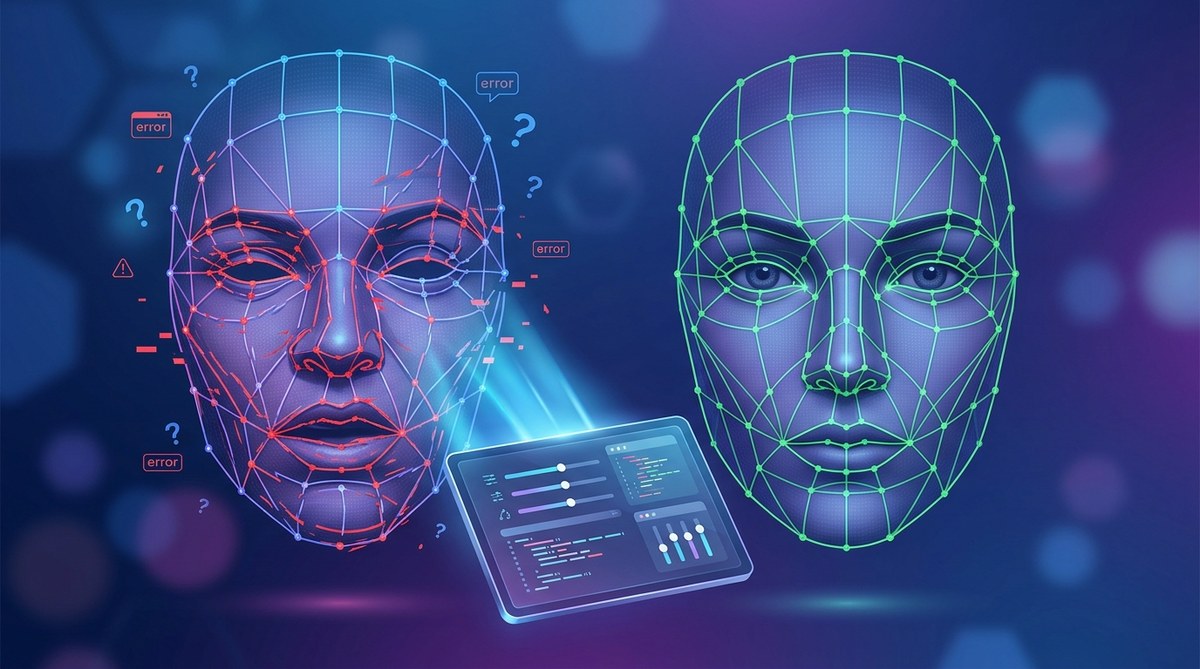
Creating engaging Snapchat lenses often involves working with face meshes. However, face mesh distortions can ruin the user experience and make your filter look unprofessional. These issues may appear as warped features, misaligned textures, or inconsistent tracking. Understanding how to troubleshoot these problems is key to producing smooth, realistic AR effects. This guide walks you through practical steps, common pitfalls, and expert tips to fix face mesh distortions in Snapchat lenses effectively.
Troubleshooting face mesh distortions in Snapchat lenses involves verifying your face tracking setup, optimizing your mesh configurations, and testing across devices. Address common mistakes like [poor lighting](https://www.cdc.gov/healthyschools/healthy_living/lighting.htm) or incorrect face anchoring. Applying these tips ensures your AR effects look natural and perform well on all users, elevating your lens quality and engagement.
Understanding Face Mesh Distortions in Snapchat Lenses
Face mesh distortions happen when the virtual face overlay doesn’t align properly with the user’s actual face. This misalignment can cause features to stretch, warp, or appear misplaced. These issues typically stem from tracking errors, mesh configuration problems, or environmental factors.
In Snapchat lens creation, face tracking relies on algorithms to analyze facial features in real-time. If these algorithms cannot accurately detect key points—like eyes, nose, or mouth—the resulting mesh can become distorted. Such issues are especially common for beginners or when working with complex effects.
Common signs of face mesh problems include:
- Features appearing stretched or squished
- Parts of the face floating or lagging behind movement
- Texture misalignments during facial expressions
- Inconsistent tracking across different devices
Understanding these symptoms helps you identify the root causes and apply targeted fixes.
Practical Steps to Troubleshoot Face Mesh Distortions
Fixing face mesh distortions requires a systematic approach. Follow these steps to diagnose and resolve common issues:
1. Verify Proper Face Tracking Setup
Start by checking your face tracking configuration in Lens Studio. Make sure you’re using the latest face tracking modules and that your face anchors are correctly set.
- Use the default face tracker component provided by Snapchat’s Lens Studio.
- Ensure the face tracker is set to follow the primary face, especially in multi-face scenarios.
- Confirm that face landmarks are correctly mapped to your mesh.
2. Optimize Lighting and Camera Conditions
Poor lighting can impact face detection accuracy. Encourage users to avoid overly dark environments or harsh lighting conditions.
- Test your lens in various lighting scenarios.
- Use soft, even lighting to improve tracking stability.
- Avoid backlighting or strong shadows on the face.
3. Adjust Face Mesh and Texture Settings
Mesh configuration plays a significant role in avoiding distortions.
- Use a sufficiently dense mesh to capture facial details without overcomplicating processing.
- Check your mesh’s weight paint (if applicable) to ensure smooth deformation.
- Avoid overly complex textures that can cause misalignment during movement.
4. Fine-Tune Facial Anchors and Constraints
Incorrect placement of face anchors can lead to distortions.
- Use the face anchor tools in Lens Studio to precisely position your mesh.
- Test different anchor points and observe how the mesh responds.
- Apply constraints to limit unwanted movements or deformations.
5. Test on Multiple Devices and Faces
Device hardware and face shapes vary.
- Test your lens on different smartphones to ensure consistent behavior.
- Use faces with various shapes, sizes, and expressions.
- Adjust your settings based on these tests for broader compatibility.
6. Use Built-in Debugging Tools
Lens Studio offers debugging features.
- Enable the face tracker debug mode to visualize landmarks.
- Observe how the face points move and identify areas where tracking fails.
- Use the debug overlay to see if landmarks are correctly placed.
7. Update and Reinstall Software
Outdated software can cause bugs.
- Keep Lens Studio updated to the latest version.
- Reinstall if necessary to fix corrupted files.
- Clear cache and reset settings if facing persistent issues.
Common Mistakes That Cause Face Mesh Distortions
Being aware of typical errors helps prevent future problems. Here’s a table highlighting common techniques and mistakes:
| Techniques | Common Mistakes |
|---|---|
| Using high-quality, detailed face meshes | Overloading with excessive vertices causing lag |
| Proper lighting during testing | Testing only in ideal lighting conditions |
| Accurate placement of face anchors | Misplacing anchors leading to misalignment |
| Testing across various devices | Relying solely on high-end device performance |
| Using default face tracking modules | Custom modifications that disrupt tracking |
| Applying constraints for deformations | Over-constraining causing unnatural movements |
Expert Advice for Smoother Face Mesh Results
“To improve face mesh stability, always prioritize good lighting and device testing. Small adjustments in anchor placement can make a significant difference in how natural your lens looks.”
Consistency in testing and fine-tuning ensures your AR effects adapt well to different faces and environments. Remember that environmental factors like lighting and background can heavily influence tracking accuracy. Regularly update your software and use the debugging tools provided by Lens Studio for real-time insights.
Additional Tips to Enhance Your AR Creations
- Keep your face meshes simple enough to avoid lag but detailed enough to capture expressions.
- Use the auto-rigging features for better deformation.
- Incorporate user feedback to refine your face anchors.
- Consider scripting small adjustments for specific facial movements to prevent distortions.
- Regularly revisit your lens with fresh eyes and different test subjects.
Wrapping Up Your Face Mesh Journey
Fixing face mesh distortions is a process of continuous refinement. Start by verifying your setup and environment, then gradually tweak your configurations based on testing results. Remember to test across devices and lighting conditions for broader compatibility. With patience and attention to detail, you can create Snapchat lenses that look polished and perform flawlessly.
By applying these troubleshooting tips and avoiding common mistakes, you can elevate your AR filters and deliver a seamless experience to your audience. Keep experimenting, stay curious, and enjoy the creative process of building stunning Snapchat lenses.