
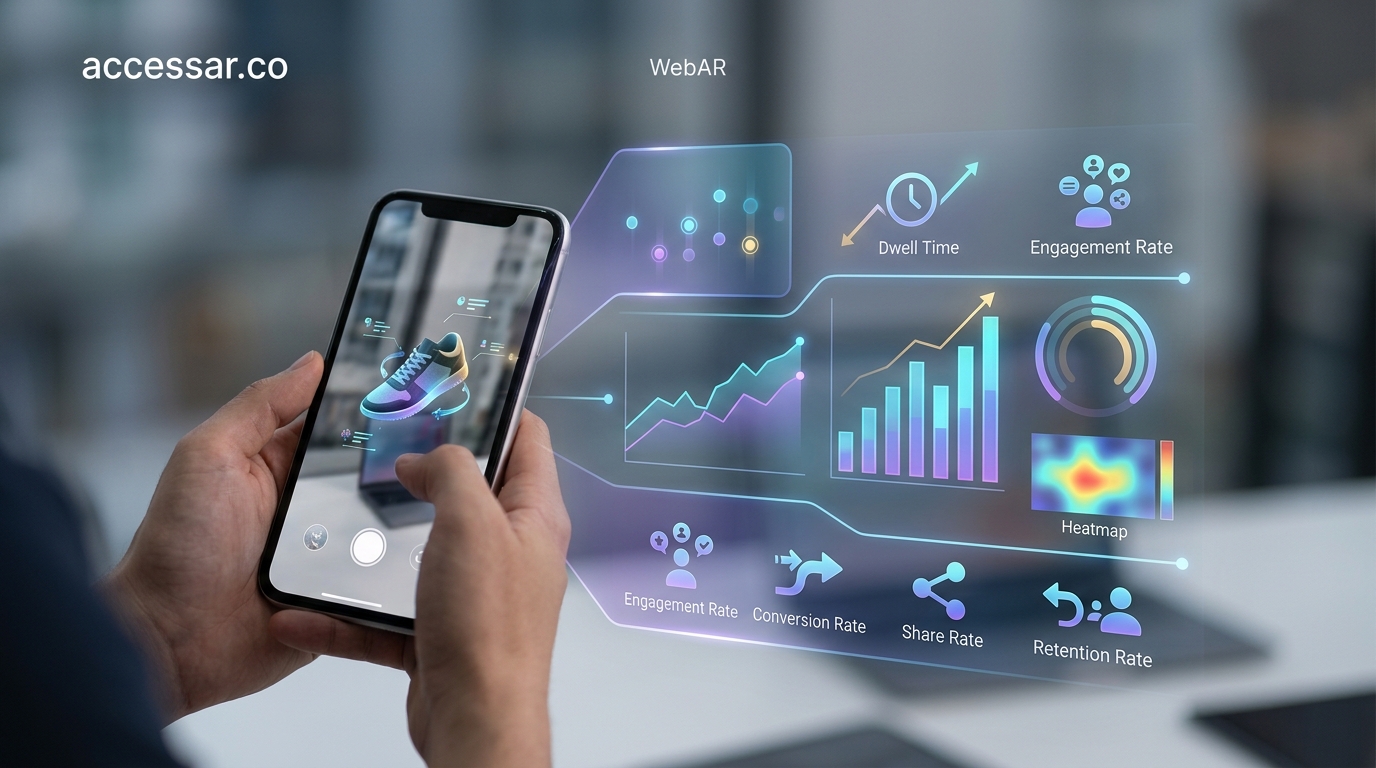
You launched your WebAR experience three weeks ago. Traffic looks decent. But you have no idea if users are actually engaging with the AR features or bouncing after two seconds of loading. Without the right performance metrics, you’re flying blind.
WebAR performance metrics include load time, session duration, interaction depth, device compatibility, and conversion rates. Successful AR experiences load under 3 seconds, maintain 60fps frame rates, and track specific user actions like object placement or feature activation. Focus on metrics that reveal technical bottlenecks and user behavior patterns rather than vanity numbers that don’t drive optimization decisions.
Understanding WebAR Performance Metrics That Actually Matter
Most analytics dashboards weren’t built for augmented reality. Traditional web metrics tell you page views and bounce rates, but they miss the nuances of AR interactions.
WebAR performance metrics need to capture both technical performance and user engagement. A user might spend 45 seconds waiting for a 3D model to load, then leave immediately. That’s a failed experience, even if session duration looks acceptable.
The metrics that matter fall into three categories: technical performance, user engagement, and business outcomes. Each category reveals different aspects of your WebAR experience health.
Technical Performance Metrics You Need to Track
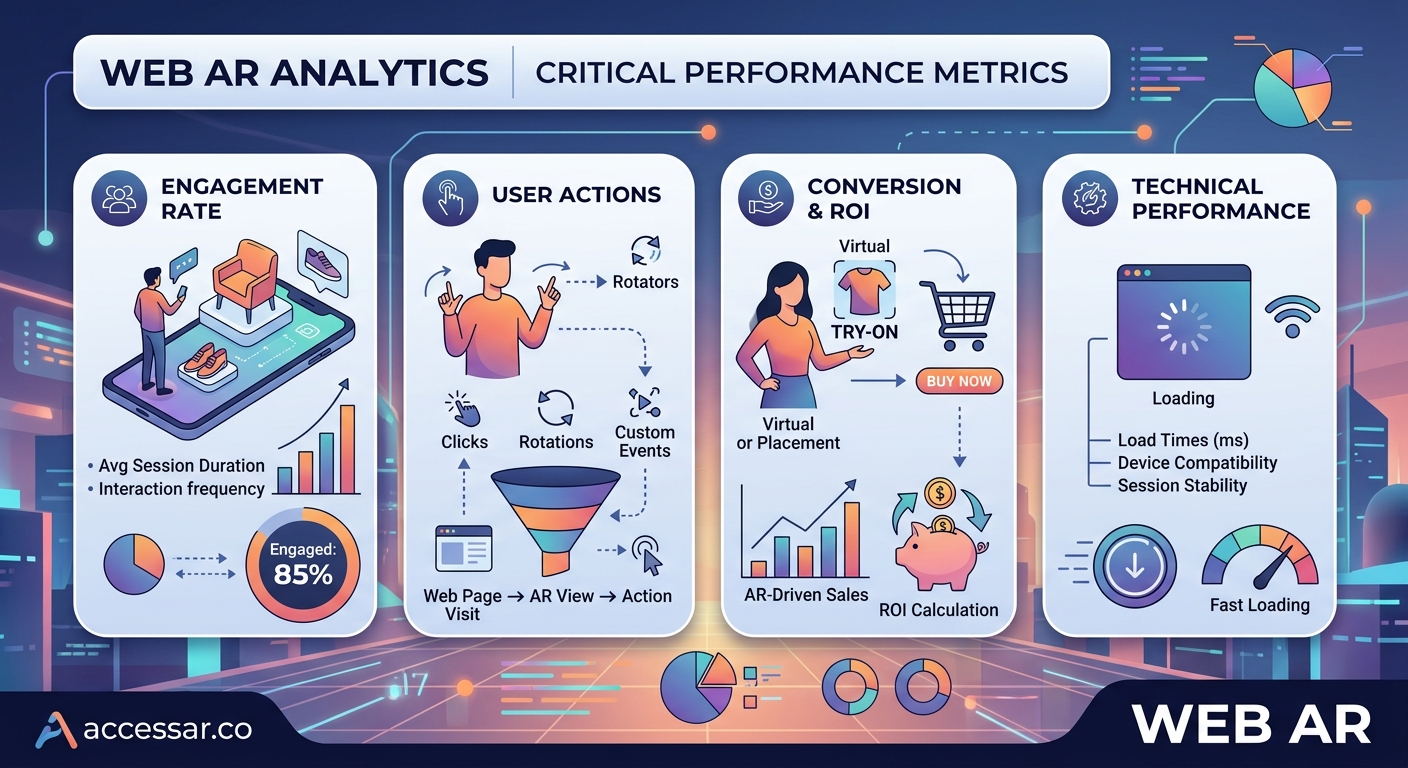
Load time determines whether users even see your AR experience. Studies show that 53% of mobile users abandon experiences that take longer than 3 seconds to load.
For WebAR, load time breaks down into several components:
- Initial page load (HTML, CSS, JavaScript)
- AR library initialization
- 3D asset download and parsing
- Camera permission request and activation
- First frame render
Track each stage separately. You might have a fast page load but slow 3D asset parsing that kills the experience.
Frame rate stability matters more in AR than traditional web content. Users notice stuttering immediately when virtual objects don’t track smoothly with the real world.
Target 60 frames per second on mid-range devices. Anything below 30fps creates a jarring experience that breaks immersion.
Memory usage becomes critical on mobile devices. A WebAR experience that consumes 500MB of RAM will crash on older phones or devices with many background apps running.
Monitor memory consumption throughout the session, not just at initialization. Memory leaks that gradually consume resources cause crashes after extended use.
User Engagement Metrics That Reveal Experience Quality
Session duration tells a different story in WebAR than traditional web content. A 15-second session might be perfect if users accomplished their goal, like visualizing furniture placement.
Context matters. Creating virtual try-on experiences with WebAR technology requires different engagement patterns than product visualization.
Track these engagement-specific metrics:
- Time to first interaction (how long until users engage with AR features)
- Interaction frequency (taps, gestures, object manipulations)
- Feature utilization rate (percentage of users trying each AR capability)
- Completion rate (users who finish the intended experience flow)
- Return rate (users who access the AR experience multiple times)
Camera permission acceptance rate reveals friction in your onboarding. If only 40% of users grant camera access, your value proposition isn’t clear enough.
Object placement attempts show whether users understand the interface. Low placement rates suggest confusing controls or unclear instructions.
Screenshot and share rates indicate emotional engagement. Users who capture and share AR experiences are your best advocates.
Conversion Metrics That Connect AR to Business Goals
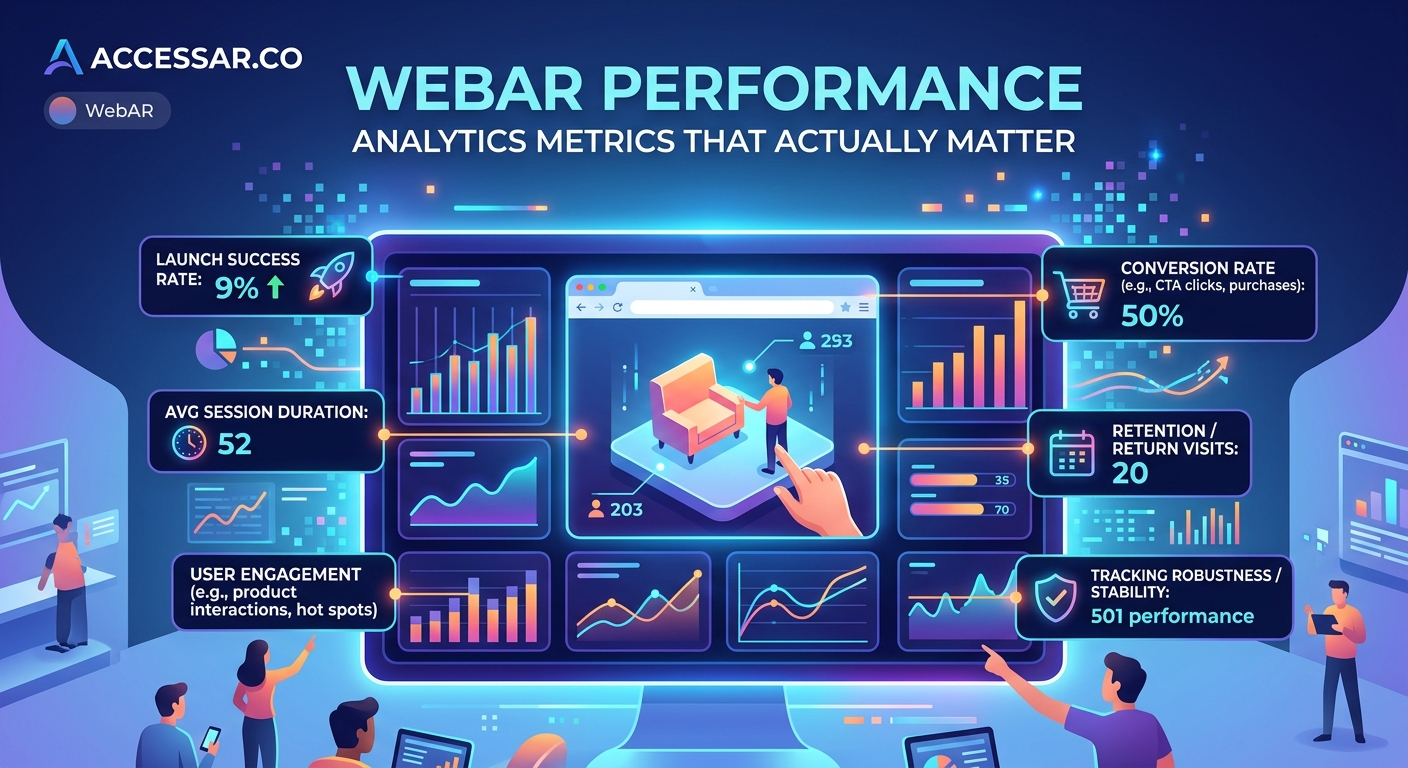
Tracking technical performance and engagement means nothing without business impact. Connect WebAR metrics to actual outcomes.
For e-commerce, track:
- Add-to-cart rate after AR interaction
- Purchase conversion rate (AR users vs non-AR users)
- Average order value comparison
- Return rate reduction (AR-assisted purchases vs traditional)
Lead generation campaigns need different metrics. Track form completion rates, contact information quality, and sales team follow-up success rates.
Brand awareness campaigns should measure social sharing, time spent with branded content, and brand recall in post-campaign surveys.
Attribution becomes tricky with WebAR. Users might interact with AR on mobile, then purchase on desktop later. Implement cross-device tracking or use unique promo codes tied to AR experiences.
Setting Up Proper WebAR Analytics Infrastructure
Google Analytics tracks page views, but it doesn’t understand AR-specific events. You need custom event tracking for meaningful insights.
Set up event tracking for these actions:
- AR session start
- Camera permission granted/denied
- 3D model loaded successfully
- First object placement
- Object manipulation (rotation, scaling, repositioning)
- Screenshot capture
- Share button click
- AR session end
Use descriptive event names that make reports readable. “ar_model_placed” is clearer than “event_3” six months from now.
Implement error tracking separately. Capture and log:
- Device compatibility failures
- Camera initialization errors
- 3D model loading failures
- WebGL context loss
- Memory-related crashes
Error rates by device model reveal compatibility issues. If 80% of Samsung Galaxy A series users encounter errors, you have a specific technical problem to solve.
“The biggest mistake I see teams make is tracking everything without understanding what they’ll do with the data. Choose five metrics that directly inform optimization decisions, then expand from there.” – AR Analytics Consultant
Device and Browser Compatibility Metrics
Not all devices handle WebAR equally. iPhone 12 users might have flawless experiences while Android users on budget phones struggle.
Track performance metrics segmented by:
- Device model
- Operating system version
- Browser type and version
- Screen size and resolution
- Available RAM
- GPU capabilities
This segmentation reveals where to focus optimization efforts. If 30% of your audience uses devices that can’t maintain 30fps, you need lighter 3D models or simplified experiences for those users.
Browser compatibility varies wildly. Safari handles AR differently than Chrome on Android. Firefox has different WebGL limitations than Edge.
Test on actual devices, not just emulators. Emulators miss real-world performance issues like thermal throttling or background app interference.
Performance Benchmarks Worth Targeting
Knowing what to measure means nothing without benchmarks. Here’s what successful WebAR experiences typically achieve:
| Metric | Good | Excellent | Notes |
|---|---|---|---|
| Initial load time | Under 3s | Under 2s | Includes AR library initialization |
| 3D asset load time | Under 2s | Under 1s | For models under 5MB |
| Frame rate | 30fps+ | 60fps | On mid-range devices |
| Camera permission rate | 60%+ | 80%+ | After clear value proposition |
| Session duration | 30s+ | 90s+ | Context-dependent |
| Interaction rate | 50%+ | 75%+ | Users who place/manipulate objects |
These benchmarks vary by use case. Product visualization needs faster load times than entertainment experiences where users expect richer content.
Common Measurement Mistakes to Avoid
Vanity metrics waste time. Total AR sessions sounds impressive in reports but doesn’t reveal experience quality or business impact.
Averaging metrics across all devices hides problems. Your experience might work perfectly on flagship phones while failing completely on mid-range Android devices that represent 60% of your audience.
Ignoring the complete user journey creates blind spots. Users might love your AR experience but abandon checkout because the transition feels disconnected.
Failing to track technical errors means you don’t know how many users never see your experience. Silent failures don’t appear in engagement metrics.
Not segmenting new versus returning users masks onboarding issues. First-time users need different metrics than people using your AR experience for the third time.
Tools for Tracking WebAR Performance
Custom event tracking through Google Analytics works for basic needs. Set up goals and events that capture AR-specific interactions.
Mixpanel and Amplitude offer better funnel analysis for complex user journeys. Track how users move through multi-step AR experiences.
Sentry or Rollbar capture JavaScript errors and crashes. You’ll see exactly what breaks and how often.
Browser DevTools provide real-time performance profiling. The Performance tab reveals frame rate issues, memory consumption, and JavaScript execution bottlenecks.
Lighthouse audits measure load performance and identify optimization opportunities. Run audits regularly to catch performance regressions.
WebGL stats extensions show draw calls, triangle counts, and shader compilation times. These technical metrics help optimize 3D rendering performance.
Optimizing Based on Performance Data
Data without action is useless. Review metrics weekly and prioritize improvements based on impact.
If load time exceeds 3 seconds, optimize 3D models first. Reduce polygon counts, compress textures, and implement progressive loading.
Low interaction rates suggest UX problems. Add clearer instructions, improve visual affordances, or simplify controls.
High error rates on specific devices might require fallback experiences. Offer 2D product views for devices that can’t handle WebAR smoothly.
Poor conversion rates despite good engagement indicate a disconnect between AR experience and purchase flow. Streamline the path from AR interaction to checkout.
Frame rate issues often stem from excessive draw calls or complex shaders. Profile rendering performance and simplify materials or reduce object counts.
Connecting WebAR Metrics to Platform-Specific AR
WebAR analytics differ from platform-specific AR tools. Understanding how no-code platforms handle analytics helps you choose the right solution for your needs.
Social platform AR filters have built-in analytics. Snapchat, Instagram, and TikTok provide impression counts, usage rates, and sharing metrics automatically.
WebAR requires manual implementation of all tracking. You control the data but must build the infrastructure yourself.
The trade-off between convenience and control shapes your analytics strategy. Platform AR gives you less data but requires less setup. WebAR demands more work but provides deeper insights.
Building a WebAR Performance Dashboard
Spreadsheets don’t cut it for ongoing monitoring. Build a dashboard that surfaces critical metrics at a glance.
Include these sections:
- Technical health (load times, frame rates, error rates)
- User engagement (session metrics, interaction patterns)
- Business impact (conversions, revenue attribution)
- Device breakdown (performance by hardware)
- Trend analysis (week-over-week changes)
Update dashboards automatically. Manual data entry leads to outdated information and missed issues.
Set up alerts for critical thresholds. Get notified immediately if error rates spike or load times degrade.
Share dashboards with stakeholders who need different views. Executives care about business metrics. Developers need technical performance data.
Measuring Success Beyond the Numbers
Quantitative metrics tell part of the story. Qualitative feedback reveals why numbers move.
Conduct user testing sessions where you watch people use your WebAR experience. You’ll spot confusion, delight, and frustration that metrics miss.
Collect feedback through post-experience surveys. Ask specific questions about load times, ease of use, and value delivered.
Monitor social media mentions and support tickets. Users often describe problems in their own words, revealing issues your metrics don’t capture.
A/B test significant changes. Metrics show what happened. Tests reveal what works better.
Making WebAR Performance Metrics Work for Your Team
Start small. Pick three metrics that directly impact your primary goal. Master those before expanding.
Document what each metric means and why it matters. Six months from now, new team members need to understand your measurement strategy.
Review metrics regularly but not obsessively. Weekly reviews catch trends. Daily panic over minor fluctuations wastes energy.
Connect metrics to specific improvement initiatives. Every optimization project should target measurable outcomes.
Celebrate wins when metrics improve. Share successes with the broader team to build momentum for AR initiatives.
The right WebAR performance metrics transform guesswork into informed decisions. You’ll know exactly where experiences succeed, where they fail, and what to fix first. That clarity makes the difference between AR experiments that fizzle and experiences that drive real business results.